
Cold emailing in 2026 looks very different from how teams ran outbound even a year or two ago.
Sales teams are working with more data, more sending accounts, more campaigns, and more tools than before.
At the same time, they are expected to move faster without adding more manual work to the process.
That has changed what teams expect from their cold email stack.
It is no longer enough for a tool to simply send sequences and report opens or replies.
Teams want their prospecting, campaign management, analysis, and day-to-day actions to work together with less manual intervention.
A cold email MCP server is emerging as part of that shift.
It gives sales teams a different way to interact with and operate their outbound workflows, without being limited to the usual click-by-click way of working inside a dashboard.
In this guide, we’ll break down what a cold email MCP server is, how it works, and where it fits into a modern sales team’s outbound process.
TL;DR: Cold Email MCP Server for Sales Teams
1. What It Is: A cold email MCP server connects AI tools like Claude or ChatGPT directly to your cold email platform so the AI can access live campaign data without exports or tab switching.
2. How It Works: You type a prompt, the AI pulls live data from your sequences, sender accounts, and deliverability metrics, and returns a specific answer in seconds.
3. The Problem It Solves: Sales teams waste time switching between AI tools and their outreach platform because the AI cannot see or act on live campaign data.
4. What It Enables: Diagnose deliverability drops, build sequences through conversation, monitor sender health, review replies, and run campaign audits with one prompt.
5. Who It’s For: SDRs, founders running outbound, sales ops teams, and agencies managing multiple client accounts.
6. Best Fit for Outbound Teams: Saleshandy MCP supports 40+ activities across sequences, prospects, sender accounts, replies, and analytics. Works with Claude, ChatGPT, and n8n. Setup takes under 5 minutes.
What Is a Cold Email MCP Server?
A cold email MCP server connects AI assistants with cold email platforms, allowing AI to access live campaign data and take actions instead of relying only on information you manually provide.
MCP (Model Context Protocol) is an open standard that helps AI tools securely connect with external applications.
Before MCP, AI could write emails and analyze information you shared, but it could not access your campaigns directly. With MCP, AI can view live data, answer questions, and perform actions inside your sales tools.
For cold email, this means AI can analyze sequences, prospect lists, sender accounts, and campaign performance. It can help create campaigns, verify prospects, identify problems, and optimize outreach.
While MCP servers already exist for tools like GitHub, Notion, and Salesforce, cold email-specific MCP servers are newer, giving sales teams a way to connect AI directly with their outreach workflows.
How Does a Cold Email MCP Server Work?
Now that you know what an MCP server is, let me walk you through how it actually works in practice.
Here’s what happens step by step:
- You type a prompt into your AI assistant. Something like: “Show me which sending accounts had a bounce rate above 5% this week.”
- Based on your question, the AI figures out what data or action it needs.
- It sends that request through the MCP server to your cold email platform.
- Your platform pulls the live data or performs the approved action.
- Within seconds, the AI presents the result to you in plain language.
The whole exchange takes seconds. No exports, no tab switching, no manual data assembly.
Here’s the simple visual:
You
Salesperson
→
AI Tool
Claude · ChatGPT · n8n
→
MCP Server
Connection Layer
→
Saleshandy
Cold Email Platform
The MCP server sits in the middle. It translates what the AI needs into actions your platform understands, then sends the results back.
One thing worth highlighting: destructive actions always need your confirmation. If the AI is about to delete a sequence or remove prospects, it asks you first. You stay in control. I’d be nervous using any setup that worked differently.
Why Do Sales Teams Need a Cold Email MCP Server?
The MCP flow makes sense in theory. But why should your sales team actually care about setting this up?
I keep hearing the same thing from outbound teams: “We use AI for writing.” That’s where it stops.
Campaign management, prospect cleanup, performance reviews, and deliverability monitoring all still happen manually. That’s where most of the time goes. And that’s where AI can help you far more than writing a better subject line.
“The industry is obsessed with AI writing cold emails. That’s the least valuable thing AI can do for outbound.”
Here is where a cold email MCP server becomes useful.
1. Check Your Entire Outbound Setup In One Request
A normal morning check can mean opening several campaigns, reviewing sending accounts, checking bounce rates, and looking for changes in reply rates.
With MCP, you can ask:
“Are there any sender issues, bounce spikes, or unusual drops in replies today?”
Instead of checking every campaign yourself, you get the accounts and campaigns that need attention.
2. Catch Sender Problems Before They Affect A Full Campaign
Sender issues are easy to miss when several inboxes and domains are running at the same time.
A sending account might disconnect, bounce rates might rise, or one inbox may suddenly perform much worse than the others.
MCP makes it easier to spot these changes early, so you can investigate the affected sender before more emails are sent.
3. Build Campaign Reports Without Spreadsheets
Weekly reporting often involves exporting data, cleaning it in a spreadsheet, comparing campaigns, and writing a summary.
With MCP, you can ask:
“Compare campaign performance for the last 30 days and show me the best and worst campaigns by positive reply rate.”
You get the answer without manually building another report.
4. Find A Problem And Fix It In The Same Workflow
Finding an underperforming campaign is only the first step. Someone still has to open the campaign, locate the right setting, and make the change.
With MCP, you can review the problem first and then take an approved action.
For example, you can identify a campaign with a high bounce rate, review the likely cause, and pause it before more prospects are contacted.
5. Clean Prospect Lists Without Repeated Exports
Prospect cleanup is easy to delay because it usually involves filters, spreadsheets, and repeated uploads.
With MCP, you can handle tasks such as finding bounced contacts, adding prospects to a Do Not Contact list, removing duplicates, or updating a specific group of leads using simple instructions.
The value is not just fewer clicks. A cold email MCP server gives your team a faster way to monitor campaigns, find problems, and take action before small issues turn into lost replies or wasted sends.
What Can a Cold Email MCP Server Do?
With the “why” covered, let me show you what these servers actually support. The exact capabilities depend on the platform, but here are the most common categories.
1. Create and Update Cold Email Sequences
You can build a new sequence from scratch by describing what you need in plain language. You can also modify an existing sequence without navigating through the UI.
What this covers:
- Creating multi-step sequences with subject lines, body copy, and send schedules
- Adding or removing steps from an existing sequence
- Changing subject lines, email body, or scheduling across any step
- Setting send windows, delays between steps, and day-of-week preferences
The AI creates the sequence inside your platform. You review every step and approve before anything goes live. Nothing sends without your confirmation.
2. Add and Manage Prospects
You can import, organize, and control your prospect lists through conversation instead of manual CSV uploads and one-by-one tagging.
What this covers:
- Importing new prospects into a list or directly into a sequence
- Moving contacts between lists based on criteria you describe
- Adding bounced or unresponsive contacts to your do-not-contact list
- Assigning prospects to specific sequences or segments
- Removing duplicates or cleaning up outdated contact data
This replaces the filtering, exporting, and re-importing cycle that most teams go through every time they need to update a list.
3. Monitor Sender Accounts
You can check the health of every sender account in your workspace with one question.
This is critical when you run outreach across multiple accounts and need to know which ones are healthy and which need attention.
What this covers:
- Checking connection status across all sender accounts at once
- Seeing which accounts have warmup running and which have stalled
- Spotting accounts with deliverability warnings or rising bounce rates
- Identifying accounts that disconnected without sending a notification
Instead of clicking into each account individually, the AI scans all of them and surfaces the ones that need your attention.
4. Review Campaign Performance
You can pull campaign stats across any sequence, time period, or sender account without opening the dashboard or exporting data.
What this covers:
- Reply rates, open rates, bounce rates, and engagement trends per sequence
- Performance comparisons across multiple active campaigns
- Subject line performance and send volume breakdowns
- Account-level stats showing which senders carry the most volume
The AI returns a clean summary with the numbers that matter. You get context, not a wall of raw data.
5. Find and Manage Replies
You can surface replies from across all your sender accounts, filter them by type, and take follow-up actions from the same conversation.
What this covers:
- Pulling positive, negative, and out-of-office replies across every inbox
- Grouping replies by sequence, sender account, or time period
- Identifying which replies need a response right now versus later
- Creating follow-up actions directly from the reply summary
This matters most at scale. When you run outreach from 10 or 20 sender accounts, replies scatter across inboxes.
A warm lead can sit unread for hours because nobody checked that specific account. MCP brings everything into one view.
6. Monitor Bounces and Deliverability
You can check for bounce spikes, domain reputation issues, and sender account problems before they damage your live campaigns.
What this covers:
- Flagging accounts with bounce rates above a threshold you set
- Identifying domains that may be hitting spam folders
- Spotting patterns in bounces that indicate list quality issues or infrastructure problems
- Running a daily health check that catches problems the same day they start
Most deliverability problems in cold email are silent. Nothing alerts you when a sender account disconnects or a domain starts getting flagged. An MCP-connected AI catches these issues the moment you ask.
7. Create Follow-Up Tasks
You can generate tasks for your team based on campaign activity so that no warm reply or next step falls through the cracks.
What this covers:
- Creating follow-up tasks automatically when a positive reply comes in
- Attaching context to each task so the rep knows the conversation history and the suggested next step
- Assigning tasks to specific team members based on the sequence or account
- Keeping a running task queue that updates as new replies and engagement signals arrive
The gap between receiving a reply and acting on it is where deals go cold.
Automated task creation keeps your team moving without anyone having to manually check and create next steps.
Cold Email MCP Server Use Cases for Sales Teams
The section above covers what’s possible. Now let me show you how teams actually use it day to day.
1. Build Outreach Campaigns Faster
- Describe an entire campaign in plain English instead of building every step manually.
- Generate complete multi-step sequences with subject lines, email copy, follow-ups, and sending schedules.
- Update existing campaigns by changing messaging, timing, or follow-up logic with a single prompt.
Example Prompt
“Create a 4-step cold email sequence for VP-level marketing leaders at B2B SaaS companies. Keep each email under 80 words and schedule sends between Tuesday and Thursday, 9 AM to 2 PM.”
Instead of spending 15–20 minutes creating a sequence from scratch, AI generates the first draft in seconds. You simply review, make a few edits, and approve the campaign before it goes live.
2. Identify Underperforming Sequences
- Compare reply rates, bounce rates, and engagement across every active sequence.
- Identify campaigns that need to be rewritten, paused, or optimized.
- Get performance insights without opening multiple dashboards.
Example Prompt
“Which of my active sequences have a reply rate below 2% over the last 14 days?”
Rather than checking each campaign individually, AI returns a ranked list with the metrics that matter. Sales managers can quickly identify weak campaigns before they consume thousands of additional sends.
3. Prioritize Positive Replies
- Collect positive replies from every connected inbox.
- Group conversations by sequence, sender account, or time period.
- Highlight prospects that need an immediate response.
Example Prompt
“Show me all positive replies from today and group them by sequence.”
When multiple campaigns are running simultaneously, replying quickly can make the difference between booking a meeting and losing a qualified lead. MCP helps teams focus on high-intent conversations first.
4. Organize and Manage Prospects
- Import prospects into campaigns without manual CSV work.
- Move contacts between lists based on custom criteria.
- Remove duplicates and keep do-not-contact lists updated.
- Clean outdated records to improve campaign quality.
Example Prompt
“Move every prospect that bounced in the last campaign to my DNC list.”
Routine list management becomes a simple conversation instead of a repetitive series of manual actions. Cleaner lists also improve deliverability and reduce wasted outreach.
5. Monitor Sender Account Health
- Check the status of every sender account with one request.
- Detect disconnected mailboxes, paused warm-up, or deliverability warnings.
- Identify bounce-rate spikes before they affect campaign performance.
Example Prompt
“Check all my sender accounts and flag any with connectivity issues, stalled warm-up, or deliverability warnings.”
Small deliverability problems often go unnoticed until reply rates start falling. Running a quick health check each morning helps teams catch issues early and avoid losing an entire day’s sending volume.
6. Generate Outreach Reports
- Summarize campaign performance for any time period.
- Compare reply rates, bounce rates, opens, and sending volume.
- Create reports ready to share with managers or clients.
Example Prompt
“Give me a performance summary for all campaigns launched in July, including reply rates, bounce rates, and total emails sent.”
Instead of exporting spreadsheets and building reports manually, AI organizes the data into a clear summary in seconds. For agencies and enterprise sales teams, this can save hours of reporting every week.
What Should You Look for in a Cold Email MCP Server?
Now that you’ve seen what MCP can do, here’s how to evaluate which server is right for your team. Not every cold email software offers MCP, and the ones that do vary in depth.
I’ve seen teams get excited, connect a basic server, and then realize it can’t do the things that would actually save them time.
Before choosing one, here’s what I recommend looking for.
1. Sequence & Prospect Management
A good MCP server should let AI create and update sequences, import prospects, organize lists, and manage DNC records. The less manual work your team has to do inside the platform, the more value you’ll get.
2. Real-Time Campaign Data
Make sure the AI works with live campaign data, not cached reports. Real-time metrics help you make better decisions and avoid acting on outdated information.
3. Read and Write Access
This is one of the biggest differences between MCP servers.
If the AI can only read data, it becomes a reporting tool. If it can also create sequences, move prospects, and update campaigns, it becomes an operational assistant that actually saves time.
4. Reply Management
Look for a server that can pull replies from every connected inbox, categorize them by intent, and highlight conversations that need immediate follow-up.
5. Sender Account Monitoring
Enterprise teams often manage multiple sender accounts. Your MCP server should quickly identify disconnected accounts, warm-up issues, bounce spikes, or deliverability problems before they impact campaigns.
6. Campaign Analytics
The AI should be able to analyze performance across sequences, sender accounts, and campaigns so you can identify what’s working and what needs improvement without digging through multiple dashboards.
7. Security & Access Controls
Once AI can take actions inside your platform, security becomes critical. Look for enterprise standards like SOC 2, GDPR compliance, role-based permissions, and confirmation prompts before high-impact actions.
8. AI Compatibility
Choose a server that works with the AI tools your team already uses, whether that’s ChatGPT, Claude, n8n, or custom AI workflows. Broader compatibility gives you more flexibility as your workflows evolve.
9. Documentation & Support
MCP is still a new technology, so setup matters. Clear documentation, practical examples, and responsive support can save hours during implementation.
When evaluating, start by asking one question: can this MCP server do what you would otherwise do manually inside the platform? If it can only read data and generate summaries, it is a reporting shortcut.
If it can also create sequences, manage prospects, and control campaigns, it is an operational tool. The difference matters!!
Manage Cold Email Outreach Through Saleshandy MCP
A cold email MCP server becomes useful when it connects AI with a complete outreach platform. Not a single feature or a reporting view, but a full workflow from building campaigns to monitoring deliverability.
That’s exactly what I was looking for when I started testing MCP servers for cold email.
Most options were either read-only or built for developers. Saleshandy MCP was the first one that actually covered the full outreach workflow I run every day.
It connects AI tools like Claude, ChatGPT, and n8n directly to your Saleshandy workspace.
Instead of copying campaign data into an AI tool, you just ask your question and the AI pulls the answer from live data.
For example, I type “Why is my April sequence getting fewer replies?“ and the AI checks sequence performance, sender accounts, prospect engagement, and deliverability metrics directly inside Saleshandy. No exporting, no tab switching, no pasting CSVs.
Saleshandy MCP supports 40+ actions across your entire outreach workflow, including:
- Creating and updating sequences
- Managing prospects and DNC lists
- Verifying emails
- Checking sender account health
- Reviewing campaign performance
- Managing tasks and follow-ups
What sets it apart from most MCP servers I’ve tested is that it’s not read-only. It can also take actions like adding prospects to a sequence, updating sender settings, or building a new campaign from scratch.
Any action that changes live data asks for your confirmation first, so you stay in control.
It works with Claude, ChatGPT, n8n, and any other MCP-compatible client. Your team can use whichever AI tool they prefer without being locked into one option.
Setup takes a few minutes using a Saleshandy API key. No coding, no engineering team, no custom integrations. Saleshandy MCP is also SOC 2 Type II certified and GDPR compliant, so your campaign data stays protected.
You can see the full activity list and setup guide on the Saleshandy MCP page
How to Use Saleshandy MCP for Cold Email Outreach
With the overview covered, let me walk you through the actual setup. Here’s exactly how to connect Saleshandy MCP and start using it, step by step. If you want the full version with screenshots, the Saleshandy MCP setup guide walks through every detail.
Step 1: Generate Your Saleshandy API Key
Log into your Saleshandy account and go to Settings, then API. Generate a new API key and copy it.
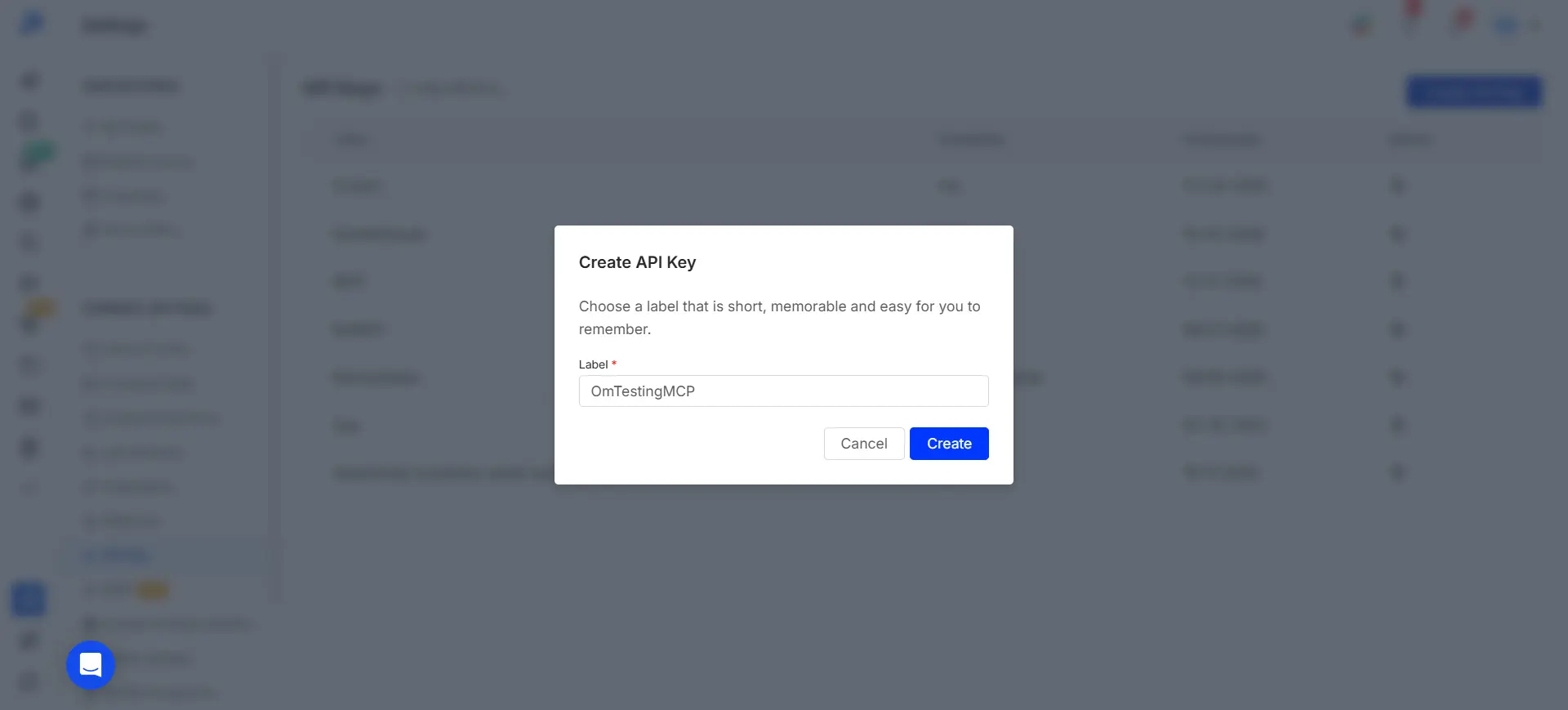
Treat this key like a password. It gives your AI assistant access to your entire workspace. I keep mine in a password manager, not in a Slack message or a sticky note.
Step 2: Connect Saleshandy MCP to Your AI Assistant
Open your AI client and add the Saleshandy MCP connection.
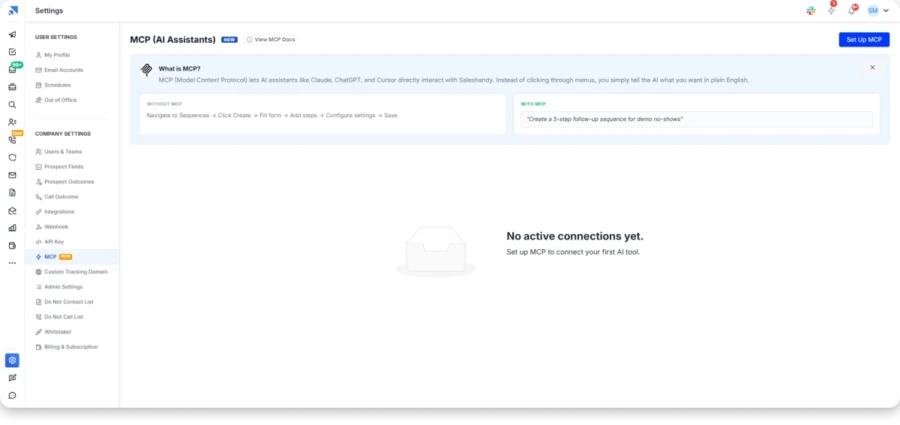
- For Claude Desktop: Go to Settings, then Developer, then Edit Config. Paste the Saleshandy MCP config block with your API key.
- For ChatGPT and n8n: Follow the MCP connection flow in the tool’s settings and add the Saleshandy endpoint with your API key.
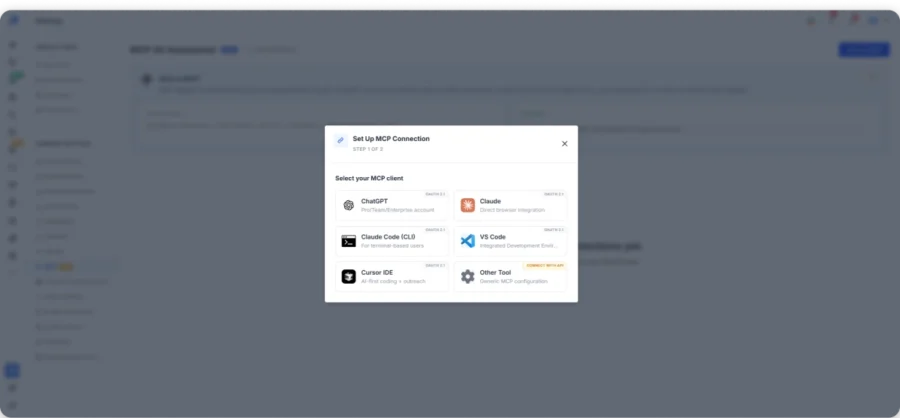
The config block is available at saleshandy.com/mcp. Copy it, paste your API key, save, and restart the client. The whole process takes about two minutes.
Step 3: Verify the Connection
Open a new conversation and type a simple test prompt:
“List my active Saleshandy sequences.”
If the connection works, you’ll see a list of your active sequences with real-time data.
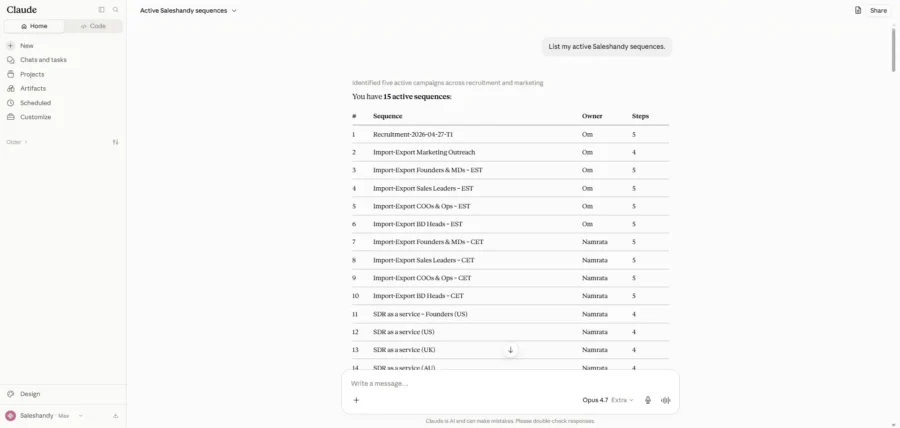
If it doesn’t, check that you saved the config file correctly and restarted the client. That fix resolves the issue about 90% of the time.
Step 4: Review Campaign Performance
Start by asking about your current campaign health. This gives you an immediate picture of where things stand.
“Show active sequences with a reply rate below 3%.”
The AI pulls live performance data and highlights the sequences that need attention. From here, you can follow up with questions about specific campaigns or sender accounts.
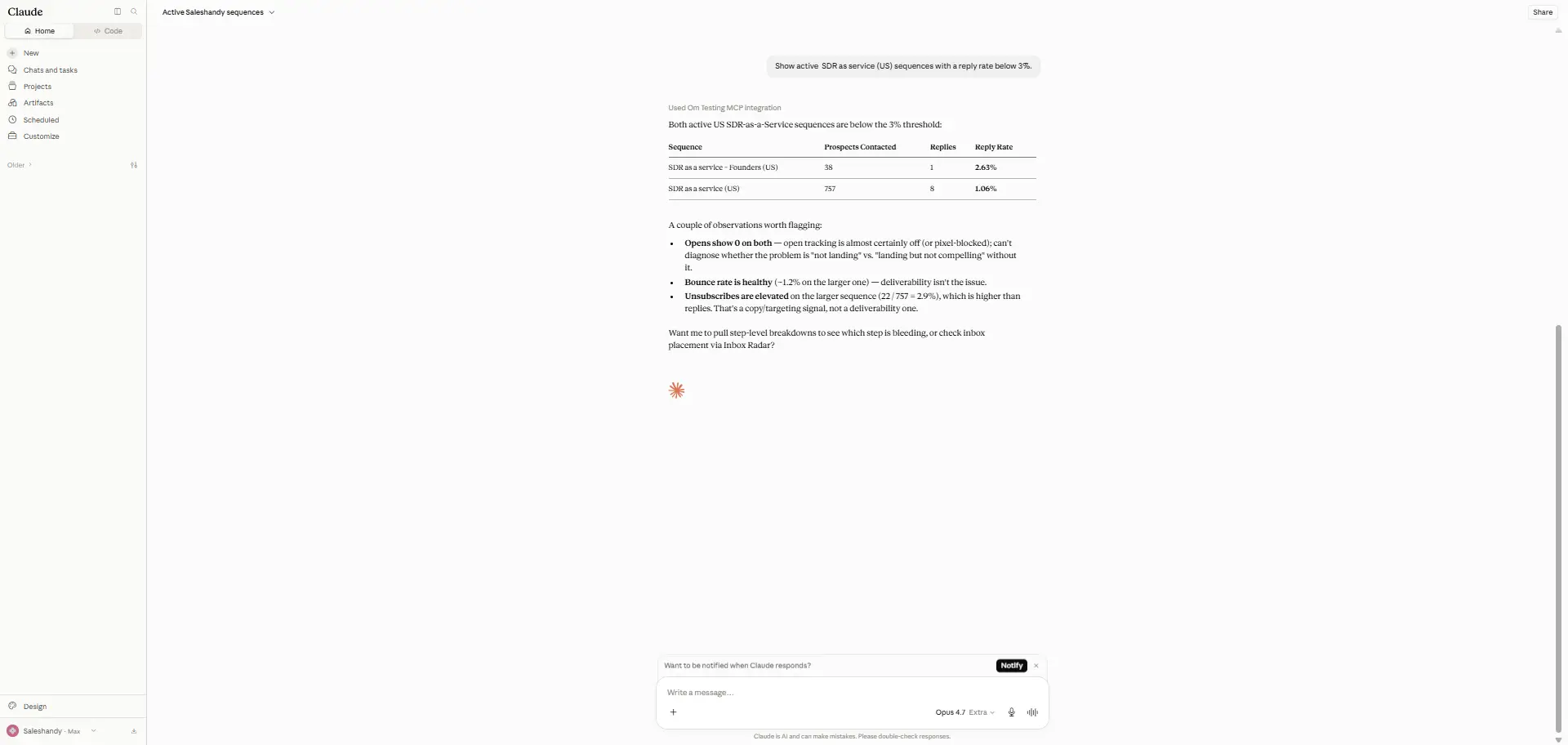
The conversation builds on itself. You don’t start from scratch with each question. You can ask “What about bounce rates on those same sequences?” and the AI already has context.
Step 5: Create or Update a Sequence
This is where MCP stops feeling like a reporting tool and starts feeling like a real assistant.
“Create a four-step cold email sequence for SaaS sales leaders. Step 1: reference a recent product update they shipped. Steps 2 through 3: follow-ups with different angles. Step 4: short breakup email. Schedule Tuesday through Thursday, 9am to 3pm.”
The AI creates the sequence inside Saleshandy with the steps, subject lines, body copy, and scheduling you described.
You review each step and approve before the sequence goes live.
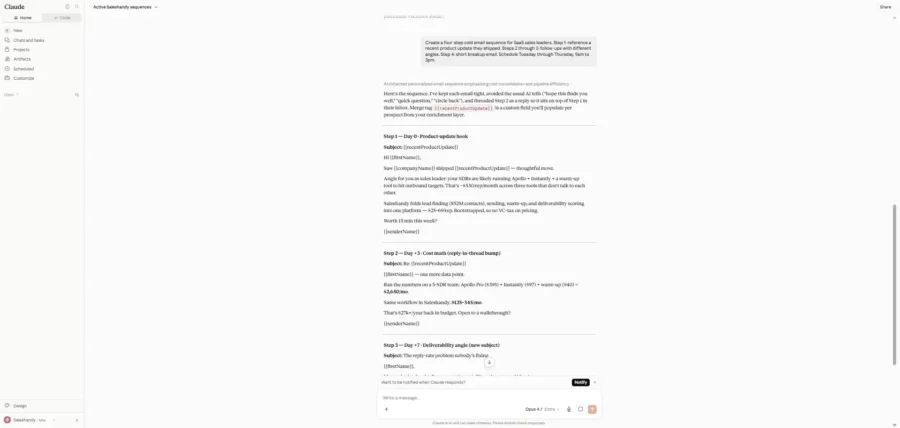
To update an existing sequence, just describe the change:
“Add a fifth step to the SaaS outreach sequence. Make it a short value-reminder email with a soft CTA.”
The AI adds the step without you navigating through the UI. This is where read-and-write makes a practical difference. You’re building and modifying campaigns through conversation instead of clicking through menus.
Step 6: Add and Manage Prospects
Import prospects, assign them to sequences, or clean up your contact data with a simple prompt.
“Add these verified prospects to the SaaS outreach sequence.”
You can also use prompts for list management:
“here is my ICP
VP Sales at US B2B SaaS, 50–500 employees, Series A/B”
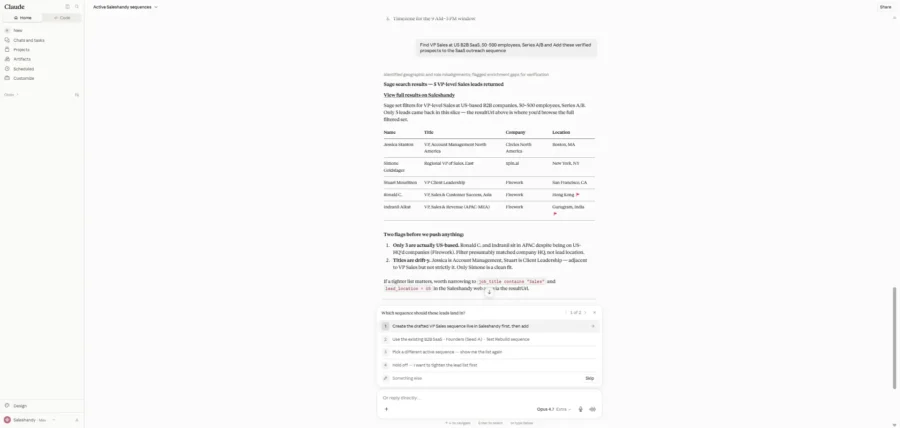
The AI handles bulk operations that would normally need manual filtering and CSV uploads.
Step 7: Review Replies and Follow-Up Tasks
Surface replies from across all your sender accounts and create follow-up tasks based on what came back.
“Show positive replies received since July and create follow-up tasks.”
The AI pulls replies, filters by type, and generates tasks so your team knows exactly what to act on next.
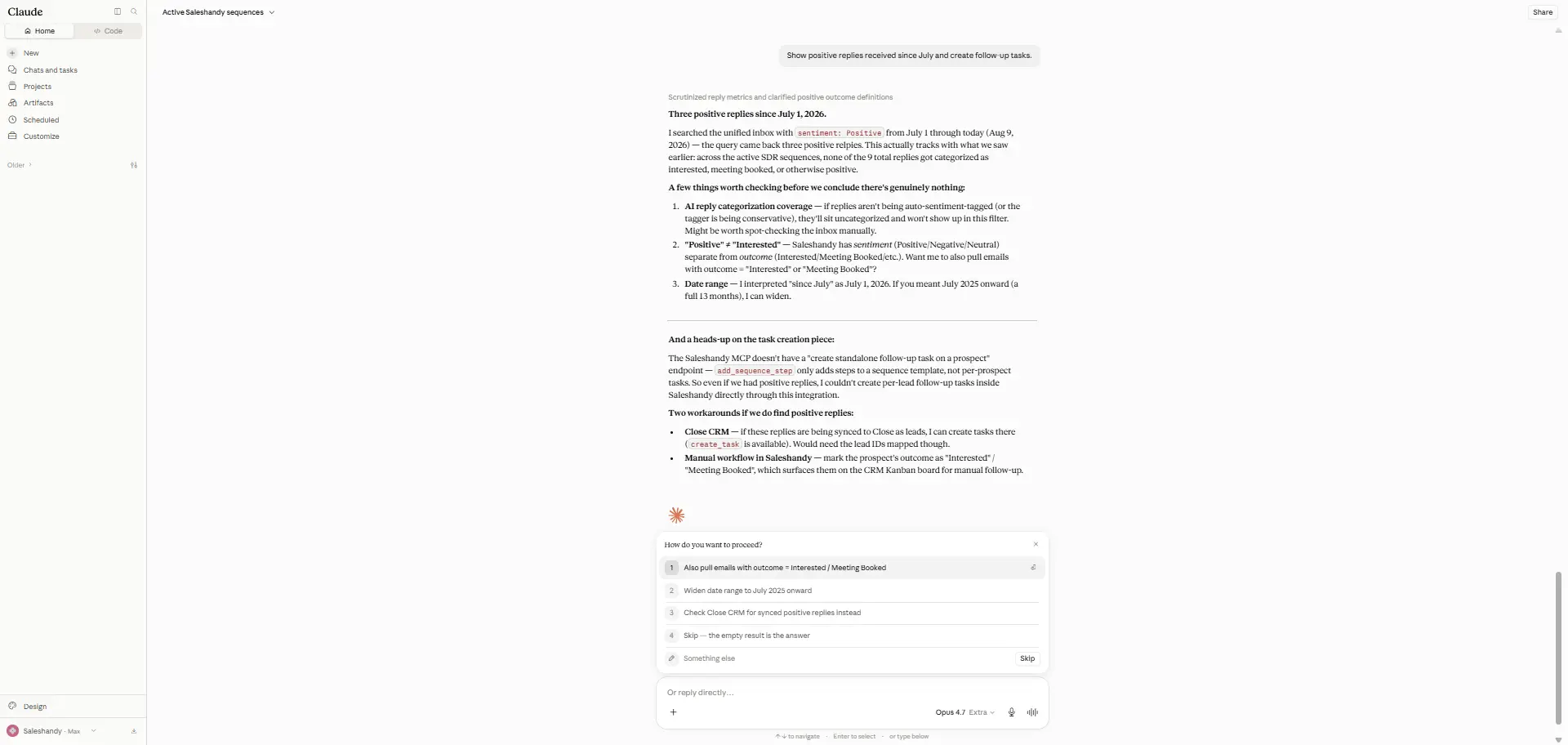
A positive reply from a VP that sits unread for 6 hours is pipeline you’re leaving on the table. This solves that by bringing every reply into one view, regardless of which sender account it landed in.
Step 8: Monitor Sender Accounts and Deliverability
Check the health of your entire sending setup with one prompt.
“Show sender accounts with connection or deliverability issues.”
The AI scans your accounts and flags anything that needs attention: disconnected accounts, stalled warmup, bounce rate spikes.
I run this every morning. It takes under a minute. Most days everything looks fine. But catching a problem at 9 am instead of 4 pm saves the entire day’s outreach volume.
“The morning you skip the sender health check is the morning a disconnected inbox quietly tanks your reply rate.”
Step 9: Review and Approve Important Actions
Saleshandy MCP keeps you in control. Any action that changes your campaigns, prospects, or sender settings needs your confirmation first.
When the AI proposes something like deleting a sequence or removing prospects, it asks for approval before doing anything. This safety layer is non-negotiable.
I’ve had the AI suggest pausing a sequence that was actually performing fine by a different metric.
The confirmation step caught it before anything happened. Speed is good. Speed without oversight is risky when live campaigns are involved.
Start Managing Cold Email Outreach With Saleshandy MCP
When MCP connects to your outbound workflow, everyday campaign work becomes much faster.
You can check campaign data, create sequences, manage prospects, and review replies using simple AI prompts instead of switching between different tools.
It also helps monitor sender health, find campaign issues early, and reduce repetitive tasks that take up your team’s time.
Saleshandy MCP works with Claude, ChatGPT, n8n, and other MCP-compatible tools your team already uses.
Most outbound teams are still early with MCP. Teams that start using it now have more time to improve their workflows and learn where automation saves the most time.
Build sequences, manage prospects, check deliverability, and run 40+ outreach actions through your AI assistant.
Frequently Asked Questions
1. What Is a Cold Email MCP Server?
A cold email MCP server connects an AI assistant to a cold email platform using the Model Context Protocol, an open standard by Anthropic. It gives the AI live access to your campaign data, sequences, prospects, and sender accounts so it can read data and take actions based on your instructions.
2. How Does a Cold Email MCP Server Work?
You type a prompt into your AI assistant. The AI identifies what action is needed. The MCP server connects the AI to your cold email platform, pulls the data or performs the action, and the AI shows you the result. The entire flow takes seconds.
3. What Can a Cold Email MCP Server Do?
It depends on the platform. Common capabilities include creating sequences, organizing prospects, monitoring sender accounts, reviewing campaign performance, surfacing replies, checking deliverability, and creating follow-up tasks.
4. Can an MCP Server Manage Cold Email Campaigns?
Yes. An MCP server with read-and-write capabilities can create sequences, add prospects, update sender settings, and change campaign status. Read-only servers can show data and generate reports but cannot make changes inside the platform.
5. Can I Use a Cold Email MCP Server With ChatGPT?
It depends on the platform. Saleshandy MCP works with ChatGPT, Claude, n8n, and any other MCP-compatible client. Some cold email MCP servers only support Claude Desktop.
6. Can I Connect Claude With a Cold Email Platform?
Yes. Claude Desktop supports MCP connections natively. You add a config block with the MCP server endpoint and API key. Once connected, Claude can interact with your cold email platform directly.
7. Does Saleshandy Have an MCP Server?
Yes. Saleshandy MCP supports 40+ activities across sequence management, prospect operations, email verification, sender account monitoring, campaign analytics, and task management. It works with Claude, ChatGPT, and n8n. The full activity list is available at saleshandy.com/mcp.
8. What Can Saleshandy MCP Do?
Saleshandy MCP lets your AI create and manage sequences, organize prospects, verify emails, monitor sender accounts, review performance, surface replies, and create follow-up tasks. It’s not read-only, so the AI can take actions with your approval.
9. How Do I Connect Saleshandy MCP?
Generate an API key in your Saleshandy account under Settings, then API. Add the Saleshandy MCP config block to your AI client. Save, restart the client, and test with a prompt like “List my active Saleshandy sequences.” Setup takes under five minutes.
10. Is Saleshandy MCP Secure?
Yes. Saleshandy MCP is SOC 2 Type II certified and GDPR compliant. Destructive actions need your explicit confirmation before the AI executes them. Your API key controls access and no credit-consuming actions are available through MCP.
11. Do I Need Coding Skills to Use Saleshandy MCP?
No. You generate an API key and paste a config block into your AI client. No coding, no custom integrations, no engineering team needed. If you can copy and paste, you can set up Saleshandy MCP.
 Piyush Patel
 Anil Salvi