


 Anil Salvi
 Contents
- 1 Email Format Guide – TOC
- 2 TL;DR: What Is the Perfect Email Format?
- 3 Why Email Format Matters More Than You Think
- 4 How to Write a Winning Professional Email (Step-by-Step Guide)
- 5 Formal vs Informal Email Format
- 6 Email Format Examples for Business, Cold Emails, Follow-Ups, Jobs & More
- 7 Why Your Emails Don’t Get Replies (Even With the Right Format)
- 8 Conclusion: The Right Email Format Gets More Replies
- 9 Email Format FAQs
- 9.1 1. How Do You Format a Professional Email?
- 9.2 2. What Is the Best Email Format for Business?
- 9.3 3. How Do You Start a Professional Email?
- 9.4 4. How Long Should a Professional Email Be?
- 9.5 5. What Is the Difference Between Plain Text and HTML Email?
- 9.6 6. Does Email Format Affect Deliverability?
- 9.7 7. What Should You Avoid in a Professional Email?
Let me guess!
You opened a blank email 20 minutes ago and rewrote the subject line four times.
Now you’re stuck between “Hi” (too casual?) and “Dear” (too Queen of England?).
The greeting isn’t right. The body hasn’t started.
Here’s the good news. You’re not bad at emails.
You’re just stuck on the thing everyone gets stuck on: the email format.
How long should the body be?
Do people still say “Best regards,” or does that sound like your dad’s LinkedIn profile?
Is one exclamation mark fine, or does it make you look desperate?
Here’s what nobody tells you.
Emails that get replies aren’t the smartest or the most polished.
They’re the ones that are easy to read in 10 seconds on a phone.
That’s what a professional email format does. It makes the reply easy to give.
Let’s walk through every part of a professional email, from subject line to signature.
Email Format Guide – TOC
- TL;DR: What Is the Perfect Email Format?
- Why Email Format Matters More Than You Think
- How to Write a Winning Professional Email (Step-by-Step Guide)
- Formal vs Informal Email Format
- Email Format Examples for Different Use Cases
- Why Your Emails Don’t Get Replies (Even With the Right Format)
- Conclusion: Format Is What Turns Emails Into Replies
- Email Format FAQs
TL;DR: What Is the Perfect Email Format?
A professional email has 7 parts. Each one has a specific job:
1. Subject line: Keep it 6 to 8 words. Be specific about what’s inside (e.g., “Quick question about your Q3 hiring plan”).
2. Preheader text: Write 30 to 90 characters that extend the subject line, not repeat it.
3. Greeting: Use “Dear [Name]” for formal, “Hi [Name]” for semi-formal, or “Hello team” for groups. Skip “To whom it may concern” in cold outreach.
4. Opening line: State why you’re writing in one sentence. Drop “I hope this email finds you well.”
5. Body: Write 50 to 125 words. One idea per email. Short paragraphs, 2 to 3 sentences each.
6. Closing line: Make one clear ask (e.g., “Are you open to a 15-minute call Tuesday?”). Avoid “let me know your thoughts.”
7. Sign-off and signature: Use “Best,” “Regards,” or “Thanks.” Add your name, role, company, and one link maximum.
Get the structure right, and you outperform most of the emails in your reader’s inbox, before you’ve typed a single clever sentence.
Why Email Format Matters More Than You Think
Most of us think email format is just about making the email look neat. It’s not. Format is what decides whether your email gets opened, read, and replied to, or deleted in 3 seconds.
Here’s what’s actually happening in the reader’s inbox.
Your Reader Gives You About 15 Seconds
People spend 15 to 20 seconds on an email before deciding what to do with it. In that window, they scan about 50 words. Not read. Scan.
If your format doesn’t make the point obvious in that window, the email is done.
Formatting Changes How People Respond
Same words, same ask, same sign-off. Change only the formatting, and the response shifts.
Cleanly formatted emails feel more credible. Readers trust them faster and remember more of what’s inside.
That’s not opinion. That’s what the data shows.
Most Emails Bury the Point
Three paragraphs of “hope you’re well“ before the ask.
Company backstory nobody asked for. Context that should have been a link.
By the time the reader finds what you actually want, they’ve already moved on. Say it in the first two sentences or don’t say it at all.
Good Format Makes Replying Feel Like Nothing
Here’s what most guides skip. When your email is easy to scan and the ask is clear, replying takes 5 seconds.
People don’t ignore emails because they’re busy. They ignore emails that make them think too hard.
Most Emails Are Read on a Phone
60%+ of business emails get opened on mobile.
Long paragraphs become walls, subject lines get cut off and your CTA gets buried under a bloated signature.
If you’re not writing for a 6-inch screen first, you’re writing for the trash folder.
Bad Format Sends You to Spam
Gmail and Outlook don’t just read your words.
They read your format. Broken authentication, heavy HTML, too many links, layouts that look like a mass blast.
Any of those can route your email to spam before a person ever sees it.
How to Write a Winning Professional Email (Step-by-Step Guide)
Format is solved by fundamentals, not clever hacks. Here’s what those fundamentals look like across all 7 parts of a professional email.
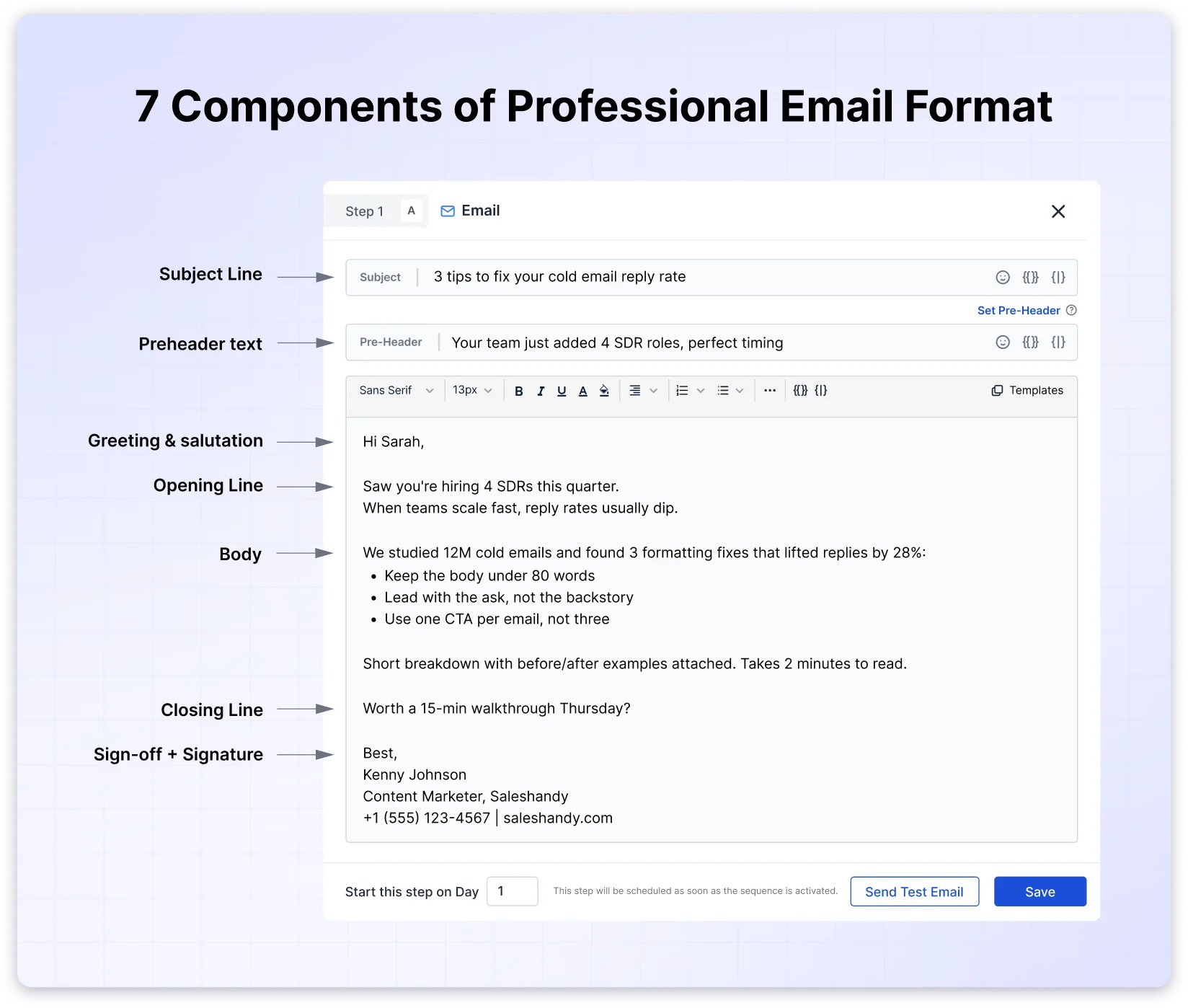
Now let’s break down each of the 7 parts. For each one, you’ll see what the part does, how to get it right, and what to avoid.
Step 1: Subject Line
The subject line is the first thing the reader sees. Get it wrong, and nothing else in the email matters.
Length: 6 to 8 words, roughly 40 to 50 characters. If it doesn’t fit on a phone screen, rewrite it.
Examples that work:
• X tips to fix [pain point]
• [Name], I saw you’re focused on [goal]
• Contacting you at [Referral]’s suggestion
• A quick idea for [goal]
• 15 minutes to discuss [topic]?
What to avoid:
- Vague subjects like “Hi” or “Quick question.”
- All caps or “URGENT!!!”
- Clickbait that doesn’t match the body
- Anything over 50 characters
You can check out the full guide on cold email subject lines for more formats specifically designed for cold outbound.
Step 2: Preheader Text
A strong subject line opens the door. The preheader decides whether the reader walks in.
By default, inboxes pull the first line of your email body as the preheader.
That’s why “I hope this finds you well” wastes valuable inbox space.
Length: 30 to 90 characters to stay safe across Gmail, Outlook, Apple Mail, and mobile clients.
Weak vs strong:
• Weak: “Join our upcoming webinar on industry best practices.”
• Strong: “Your front-row seat to something exciting.”
• Weak: “Please take a moment to complete our feedback survey.”
• Strong: “2 minutes = a $50 gift card.”
What to avoid:
Avoid leaving it blank, repeating it, stuffing keywords, or making it too long.
Step 3: Greeting and Salutation
The greeting sets the tone. It’s the first line of your email and shapes the first impression.
Formal Email Greetings
Use for first-time outreach, job applications, or senior contacts:
• Dear [First Name] [Last Name],
• Dear Mr./Ms./Dr. [Last Name],
• Dear [Title] [Last Name],
• Good morning [First Name],
Semi-Formal and Casual Greetings
Use for warm contacts or most B2B emails:
• Hi [First Name],
• Hello [First Name],
• Hey [First Name], (use only when the relationship is already casual)
• Hi team,
In most B2B cold outreach, “Hi [First Name]” is the safest bet.
Avoid Greetings in Emails
Avoid outdated greetings like “Dear Sir/Madam,” skipping a greeting, or misspelling names.
Need more options? You can browse our full list of email greeting templates.
Step 4: Opening Line
You get two sentences before the reader bounces. Make them count.
The rule:
State your purpose in sentence one.
No warm-up. No backstory. No “I hope this finds you well.“
The formula is simple:
Reference something specific about them, then connect it to why you’re emailing.
Examples of Strong Opening Lines:
• “I read your post on [topic], and it’s the clearest take I’ve seen on [specific angle].”
• “Congrats on [recent milestone]. Growth like that usually brings [specific challenge] with it.”
• “Noticed [Company] is hiring [X role]. Teams at that stage usually run into [pain point].”
• “[Mutual contact] at [Company] suggested I reach out about [topic].”
Opening Lines That Feel Outdated
- “My name is [X], and I work at [Y].” (Nobody cares yet. Earn it first.)
- “I’m reaching out to see if…” (Burying the lead.)
- “I know you’re busy, but…” (Apologetic and weak.)
- “Just checking in!” (Overused to the point of meaninglessness.)
Step 5: Email Body
The opening earns attention. The body is what the attention pays for.
Length: 50 to 125 words. Cold emails perform best around 80.
Formatting rules:
- 2 to 3 sentences per paragraph
- Bullet points for lists of 3+
- Bold only for the one thing the reader must not miss
- Preview on mobile before sending
More than 60% of business emails are opened on mobile. On a small screen, long paragraphs become walls and your CTA gets pushed out of sight.
💡 Pro Tip: Double-check the email before you send. A valid business email address follows this format: local part + @ + domain + TLD (e.g., [email protected]). Verifying beforehand is what separates a 3% bounce rate from a 30% one.
Step 6: Closing Line
The closing line is your ask. A vague closing kills reply rate even in otherwise strong emails.
Instead of “Let me know your thoughts,” try:
- “Would a 15-minute call this week work? I can send a couple of times.”
- “Can I send over a one-pager that breaks this down?”
- “Happy to send a short demo video if that’s easier than a call.”
- “Would love your thoughts, even if the answer is no.”
The clearer the ask, the easier the reply. For more, see our breakdown on how to end an email.
Step 7: Sign-Off and Signature
The sign-off wraps up the email. The signature tells them who you are. Neither should be longer than the email itself.
Sign-off options:
- Best (safe default)
- Thanks (warm, good when asking for something)
- Regards (slightly more formal)
- Sincerely (job applications, official letters)
Signature should include:
- Full name
- Role and company
- One phone number
- One link (website or LinkedIn, not both)
The rule of thumb: if your signature is longer than your email body on mobile, it’s too long.
Email Signature Examples:
Kenny Johnson
Content Marketer, Saleshandy
+1 (555) 123-4567
saleshandy.com
Formal vs Informal Email Format
You’ve got the 7 parts down. The next question is how to adapt them to your context, starting with formality.
Not every email needs to sound like a legal document. The difference between formal and informal email format comes down to context, not rules.
When to Use Formal Email Format
Use a formal email when writing to someone for the first time, applying for a job, contacting seniors, or sending official, legal, or academic messages.
Write politely and professionally using complete sentences.
Formal emails work best as plain text.
No images, no branded layouts, no HTML formatting.
It reads like a real person wrote it, avoids spam filters, and drives 2 to 3x higher reply rates in 1:1 outreach.
Copy-Paste Formal Email Format Template
Subject: Introduction and Partnership Inquiry: [Your Company]
Dear [Mr./Ms. Last Name],
My name is [Your Name], and I work as [Role] at [Company]. I’m reaching out because [specific reason, tied to their work or company].
[One sentence on what you do and why it’s relevant to them.]
[One sentence with your ask, specific and low-friction.]
Would you be open to a brief 15-minute call next week to discuss further?
Best regards,
[Your Name]
[Role], [Company]
[Phone] | [Website]
What Is an Informal Email Format
Write informal emails for teammates or in casual workplaces such as startups and tech companies, using a friendly and conversational tone.
Save HTML format for situations where visuals, branding, and click tracking are important.
This is particularly useful for newsletters, product announcements, and promotional campaigns, where design plays a key role in obtaining replies.
Copy-Paste Informal Email Format Template
Subject: Quick idea for [specific thing]
Hi [First Name],
Saw [specific thing about them or their company]. Had one idea I wanted to run by you.
[2-sentence context on the idea.]
[1-sentence ask.]
Worth a quick chat this week?
Thanks,
[Your Name]
Email Format Examples for Business, Cold Emails, Follow-Ups, Jobs & More
With the format locked in, here’s how it applies across the emails you’ll actually send.
The 7 steps stay the same. The execution changes based on who you’re writing to and what you’re asking for. Here’s how to adapt the format for the 6 email types you probably send most often.
Cold Email Format
Cold emails work best when short, specific, and personal. Subject line tied to their world. One-line opener that references them. Quick context. One ask.
Subject: Quick question on [specific thing about their company]
Hi [First Name],
Noticed [specific trigger: hire, launch, funding, LinkedIn post].
We help [ICP] [specific outcome, not a feature]. For example, [one-line proof point with a real number].
Worth a 15-minute chat next Tuesday?
Best,
[Your Name]
Keep it under 80 words. Avoid jargon. Skip the hard sell. For more examples, see our full library of copy-paste cold email templates.
Job Application Email Format
Cold emails go to strangers. Job applications go to people who’ll decide your next career move. The format tightens up accordingly.
For job applications, formal tone wins. Clear subject. Role-specific opening. Brief pitch. Attached resume.
Subject: Application for [Role Title]: [Your Name]
Dear [Hiring Manager Name],
I’m applying for the [Role Title] position at [Company]. [One sentence on why this role fits your background.]
In my current role at [Current Company], I [one specific achievement with a number]. I’d love to bring that experience to your team.
Resume attached. Happy to share more details in a quick call whenever it works.
Sincerely,
[Your Name]
[Phone] | [Email] | [LinkedIn]
Follow-Up Email Format
Job applications are one-shot. Follow-ups are different. You already have context. Now you need to keep the momentum without sounding desperate.
Follow-ups should add value, not chase. Reference the prior email briefly. Give one new reason to reply.
Subject: Re: [Original Subject]
Hi [First Name],
Circling back on this. Didn’t want it to get lost.
Since my last note, [new relevant context or value add].
Still worth a quick chat?
Thanks,
[Your Name]
The hard part isn’t the structure. It’s knowing what to say on follow-up 2, 3, or 4 without sounding desperate. Different stages need different tones. A nudge after day 3 reads differently than a break-up email at day 14.
For more proven structures across each stage, our guide on follow-up email examples breaks down what works when.
Meeting Request Email Format
Follow-ups keep the conversation alive. Meeting requests close it into the next step.
Direct, specific, time-bounded. Include 2 to 3 proposed times.
Subject: Meeting request: [topic], [duration]
Hi [First Name],
Would love to get 15 minutes on the calendar to discuss [specific topic].
Does one of these times work?
– Tuesday at 2 pm [your timezone]
– Wednesday at 10 am [your timezone]
– Thursday at 3 pm [your timezone]
If none work, happy to find another time that does.
Thanks,
[Your Name]
Apology Email Format
Meeting requests are forward-looking. Apologies, clean up what didn’t go well.
Own the mistake. Explain briefly. Offer the fix. Move on. Don’t over-apologize.
Subject: Sorry about [specific thing]
Hi [First Name],
Wanted to apologize for [specific issue]. That shouldn’t have happened, and it’s on me.
Here’s what I’m doing to fix it: [specific action].
Let me know if there’s anything else you need from me.
Thanks,
[Your Name]
Resignation Email Format
Apologies repair. Resignations close out.
Short. Professional. No drama. Leave the door open.
Subject: Resignation: [Your Name]
Dear [Manager’s Name],
Please accept this email as formal notice of my resignation from my role as [Role] at [Company], effective [Last Day, typically 2 weeks out].
I’ve appreciated the opportunity to [one-sentence acknowledgement]. I’ll do everything I can to make the transition smooth and will hand over projects and documentation before I leave.
Thanks for the support.
Sincerely,
[Your Name]
Why Your Emails Don’t Get Replies (Even With the Right Format)
You’ve seen what works. Now let’s look at what quietly kills reply rate, even when the format looks right on the surface.
1. Vague or Missing Subject Lines
“Quick question.” “Hello.” “Touching base.” These tell the reader nothing and get deleted unopened.
Your subject line is doing the heaviest lifting in the email. If it’s vague, the email doesn’t get opened.
Fix it. Make the subject line specific, concrete, and under 50 characters.
2. Skipping the Greeting or Sign-Off
An email without a greeting or sign-off reads as abrupt, even if the content is fine. It signals either disrespect or laziness.
Always include both. Even “Hi [Name]” and “Thanks” are better than nothing.
3. Long, Unbroken Paragraphs
A 7-line paragraph on a mobile screen looks like homework. The reader’s brain sees it and checks out.
Break it up. 2 to 3 sentences per paragraph. White space between ideas.
4. Unclear or Missing Call to Action
“Let me know your thoughts” isn’t a CTA. It’s a surrender. You just asked the reader to do the work of figuring out what to reply with.
Fix it with specific, time-bound CTAs. “Are you free Tuesday at 2 pm?” Or “Can you approve this by Friday?” The easier it is to reply, the faster you get one.
5. Incomplete or Unprofessional Signatures
A signature with no contact info, no role, or a GIF from 2012 hurts your credibility. So does a signature that’s longer than the email itself.
Keep it clean: name, role, company, one link. That’s it.
6. Mobile Formatting Considerations
Over 60% of emails are opened on mobile, but almost everyone drafts on a desktop. The email that looked clean on a 27-inch monitor becomes a text wall on a 6-inch screen.
Always preview before sending. If the first paragraph doesn’t fit on one screen, tighten it. If your CTA is below the fold, move it up.
7. Deliverability and Contact Quality
Beyond formatting, two things silently tank reply rate: spam filters and bad contact data. If your emails include spam trigger words or your sending reputation is off, they never reach the inbox. And if you’re sending to outdated or fake email addresses, high bounce rates destroy sender reputation fast.
Conclusion: The Right Email Format Gets More Replies
You can spend hours writing the perfect email. But if the email format is off, it will sit unread in someone’s inbox.
A professional email format is the one thing standing between your email and a response.
Tight subject line. Preheader that extends, not repeats. Opening that skips the pleasantries. Body under 125 words. One specific ask. A sign-off that gets out of the way. That is what earns the open, the scan, and the reply.
The same rules apply across every email format, whether it is a cold email, a follow-up, a job application, or a formal business email.
The goal is to make every email easy to read, easy to scan, and easy to reply to.
Want to put this into practice? Start with Saleshandy. Try it free and send your next email in the right format from day one.
Email Format FAQs
1. How Do You Format a Professional Email?
To format a professional email, write a specific subject line under 50 characters, use a greeting matched to the relationship, state your purpose in one sentence, keep the body between 50 and 125 words, end with one clear ask, and close with a short signature.
2. What Is the Best Email Format for Business?
The best business email format is short, scannable, and mobile-first. Use a subject line under 50 characters, keep the body between 50 and 125 words, write 2 to 3 sentences per paragraph, and include one specific call to action.
3. How Do You Start a Professional Email?
Start a professional email with a greeting that matches the relationship (“Dear [Name]” for formal, “Hi [First Name]” for most B2B), followed by a one-sentence opening that states why you’re writing. Skip “I hope this email finds you well.”
4. How Long Should a Professional Email Be?
A professional email should be 50 to 125 words for most business communication, and closer to 80 words for cold outreach. Shorter emails perform better because readers scan on mobile.
5. What Is the Difference Between Plain Text and HTML Email?
Plain text emails contain only words, no formatting. HTML emails use code for images, buttons, and branded layouts. Plain text wins for cold outreach and follow-ups (2 to 3x higher reply rates). HTML wins for newsletters and promotional campaigns.
6. Does Email Format Affect Deliverability?
Yes. Poor formatting with broken authentication, excessive links, or heavy HTML triggers spam filters. Indirectly, bad formatting reduces engagement, which signals to inbox providers that your emails aren’t wanted. Clean formatting supports better inbox placement.
7. What Should You Avoid in a Professional Email?
Avoid vague subject lines, filler openers like “I hope this finds you well,” walls of text, multiple calls to action, slang in formal contexts, cluttered signatures, and ALL CAPS. Each one hurts the reply rate or triggers spam filters.