

 Dhruv Patel
 Contents
- 1 Saleshandy Dialer – TOC
- 2 What is Saleshandy?
- 3 What is the Saleshandy Dialer?
- 4 Do Your Sales Calls Look Like This?
- 5 What You Can Do With the Saleshandy Dialer
- 5.1 Make and Receive Calls From Anywhere
- 5.2 Buy and Manage Phone Numbers in Minutes
- 5.3 Call Recording, Transcription, and AI Summary
- 5.4 Voicemail Drop: Leave Perfect Messages Without Staying on Hold
- 5.5 Local Presence and Number Rotation: Call Like a Local, Scale Like a Team
- 5.6 Call From Sequence Tasks: No Context Switching
- 5.7 Dialer Dashboard and Call Logs: One Place for All Your Call Activity
- 5.8 Reports and Analytics: Team and Individual Call Performance
- 5.9 Do Not Call Management (Coming Soon)
- 5.10 All Call Activity Lives in Your CRM
- 6 The Complete Saleshandy Outreach Stack
- 7 How to Get Started With the Saleshandy Dialer
- 8 Get Dialer Access Today
- 9 FAQs
- 9.1 Do I need to install anything to use the Saleshandy Dialer?
- 9.2 Can I use the Dialer on my existing Saleshandy plan?
- 9.3 What countries are phone numbers available for?
- 9.4 Is the first phone number really free?
- 9.5 What happens if I run out of credits mid-month?
- 9.6 Can team members share phone numbers?
- 9.7 Are call recordings and transcriptions really unlimited?
- 9.8 Can I use the Dialer without a sequence, just to make manual calls?
- 9.9 How does call forwarding work?
- 9.10 Does the Do Not Call list block email outreach too?
- 9.11 What call outcomes are available?
- 9.12 Is a mobile app available for the Dialer?
How do you usually call your prospects?
You probably have a flow.
Open your calling tool. Log in. Find the number. Dial. Jot notes somewhere else.
Then go back to your outreach tool and log everything.
It works… but it’s a bit messy.
By the time you’re done, a few minutes are gone, you’ve got multiple tabs open, and the full context of that prospect? Still sitting in another window.
That’s the hidden tax most sales teams pay every single time they make a call.
Not because calling is hard, but because calling lives outside everything else.
So we fixed that.
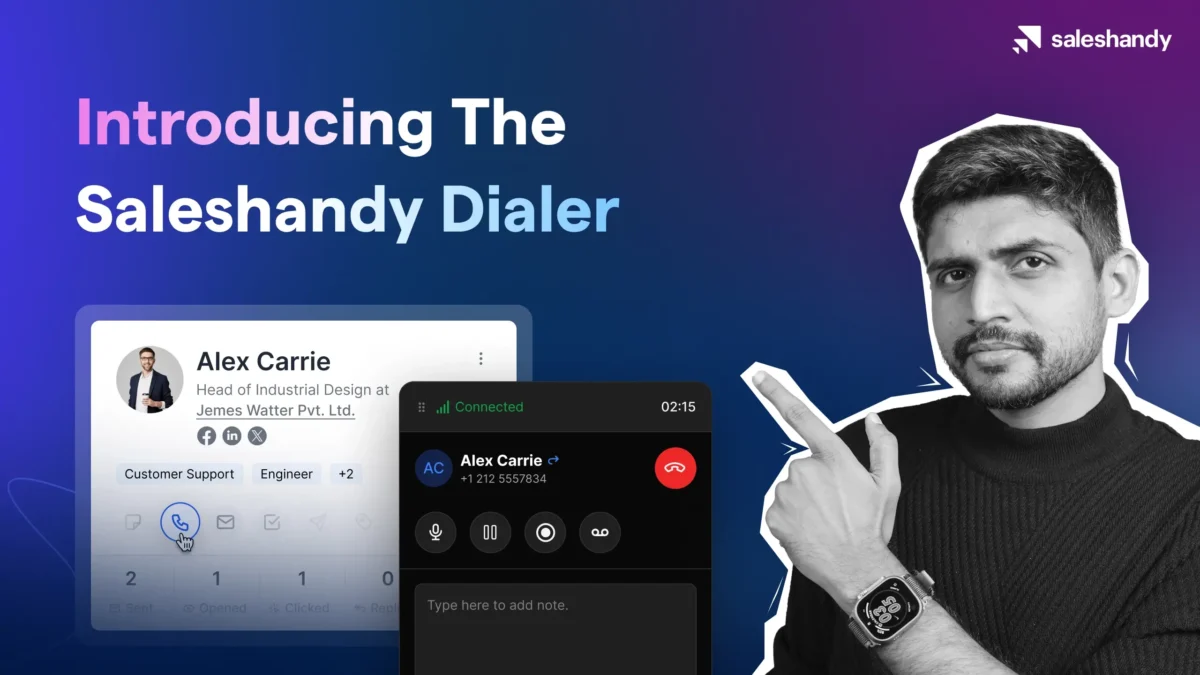
Saleshandy Dialer is now live: a fully native, browser-based calling experience built right inside Saleshandy.
This blog breaks it all down, what the Dialer does, how it works, and what changes when calling is finally part of your workflow.
Saleshandy Dialer – TOC
What is Saleshandy?
Saleshandy is a B2B outbound sales platform that helps sales teams, SDRs, and agencies find prospects, run personalized multichannel outreach, and book meetings at scale.
The platform covers the full outbound workflow in one place:
- Lead Finder: search and access an 800M+ contact and company database to build targeted prospect lists
- Cold Email Outreach: create automated, multi-channel email sequences with AI-powered personalization, sender rotation, and deliverability tools
- Saleshandy CRM: A native, cold-email-first CRM that tracks every prospect’s activity across all channels in one place
- AI Prospect Enrichment: Enrich your prospect data using LLM models and web search to write hyper-personalized emails
- MCP Integration: Control your Saleshandy account from AI tools like Claude, ChatGPT, and n8n using simple prompts
With the addition of the Dialer, Saleshandy now supports Email, LinkedIn, Calls, and WhatsApp, making it a true multichannel outreach platform where every touchpoint, every conversation, and every outcome lives in the same system.
What is the Saleshandy Dialer?
The Saleshandy Dialer is a native, calling module built directly into the Saleshandy platform.
It lets you:
- Make outbound calls & receive inbound calls
- Purchase and manage phone numbers
- Record every conversation
- Log call activity
…and much more without leaving Saleshandy, or connecting a third-party calling tool.
Everything it does is designed around making calls, managing call activity, and turning call conversations into actionable follow-up.
Do Your Sales Calls Look Like This?
Most outreach teams run their email sequences in one tool and their calls in another. Those two systems do not talk to each other. Which means:
- Call notes have to be manually copied across platforms
- There is no single view of what a prospect received: email AND call history together
- Every context switch between tools costs time and breaks flow
- Teams pay for two separate subscriptions to do one job
- Recording and call history sit in a different system than the prospect’s email activity
Managing five email accounts and twenty concurrent call tasks across two disconnected platforms is the operational reality for most sales teams, and it slows everything down.
The Saleshandy Dialer eliminates this entirely. Your calls run from the same platform, logged to the same CRM, and visible in the same prospect activity timeline as every email, reply, and task.
What You Can Do With the Saleshandy Dialer
The Dialer is not a single feature. It is a full calling system with features built around the needs of a modern outbound sales workflow.
Make and Receive Calls From Anywhere
The Dialer integrates across multiple entry points inside Saleshandy. You are never more than one click away from making a call, regardless of where you are in the platform.
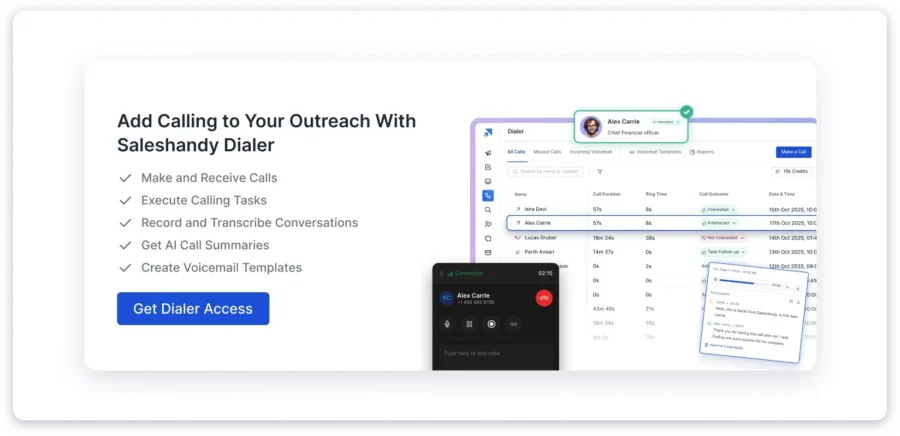
Entry points for outbound calls:
- Dialer Module: The dedicated Dialer section in your sidebar. Click ‘Make a Call’, and a floating dialer pop-up opens with a numeric keypad and a prospect search tab. Enter any number manually or search by name to call an existing prospect.
- Sequence Task Module: Call tasks that are part of a sequence appear in your Task Module. Click the task to open the Task Detail Sidebar, then hit the call button to initiate the call directly from the task without leaving the queue.
- Kanban Board: If you use Saleshandy’s Kanban view, you can make a quick call directly from a prospect’s card without navigating away.
- CRM Prospect Detail Page: Every prospect profile now has a dedicated Call tab between Notes and Emails. From here, you can initiate a call and see the full call log history for that prospect.
For inbound calls, the system works equally well.
When a prospect calls you:
- A banner appears instantly inside Saleshandy with the caller’s details (name, designation, company, or just the number if unknown) Accept or reject the call directly from the banner, no tab switching The call opens in a real-time Active Call Window with:
- Call status (ringing, connected, on hold, disconnected)
- Call duration and network strength
- Controls for mute, hold, recording, and voicemail drop
- Take notes while you talk; everything stays in one place
Missed the call?
- Calls are handled automatically based on your setup
- Forwarding rules kick in instantly
- Voicemail is triggered if configured
- No manual follow-up or tool-switching needed
The calling experience itself runs in an Active Call Window, a real-time interface that shows you call state (ringing, connected, on hold, disconnected), call duration, network strength, and action buttons for mute, hold, recording toggle, and voicemail drop.
You can also take notes live during the call. Those notes carry over automatically to the call completion screen when the call ends.
Note: All call logs sync to your CRM automatically.
Buy and Manage Phone Numbers in Minutes
To make or receive calls, you need a phone number assigned to your account. Saleshandy lets you purchase numbers directly inside the platform.
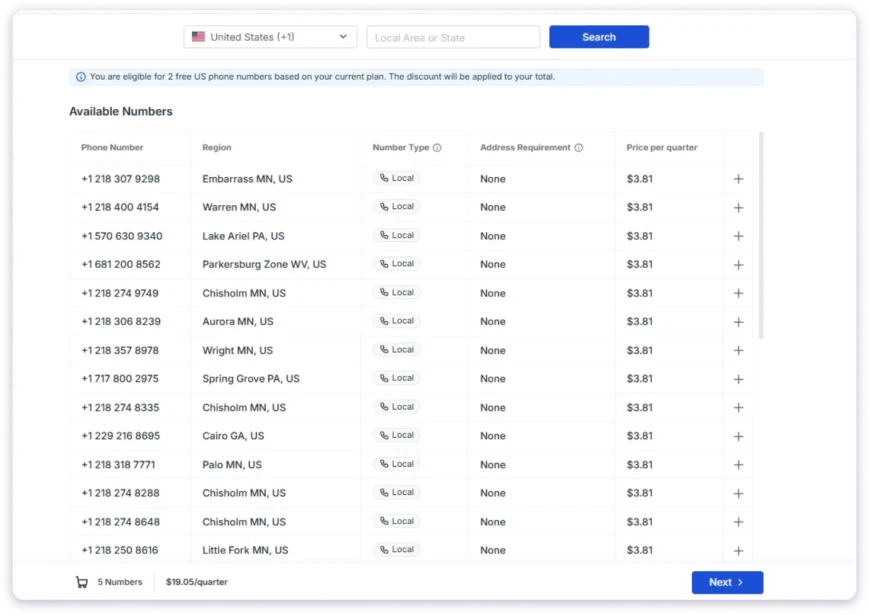
Currently available in United States and Canada. You can check out the pricing on our page.
The first phone number is included free with any Dialer plan. It is automatically provisioned to your account the moment you purchase a plan. You get a local number assigned to you immediately.
For additional numbers, the purchase flow works in a few steps:
- Search by country and optionally filter by area code or region name to find numbers that match your target market
- Add numbers to your cart (you can buy US and Canada numbers in one purchase)
- Enter your contact details and complete payment
- Numbers appear in your Phone Number Management module instantly, assigned to your account and ready to use
Once purchased, each number is fully configurable. From the Phone Numbers section in Settings, you can:
- Assign any number to a specific team member
- Label each number with a custom name (e.g. ‘Sales US’, ‘Support East Coast’) that appears in call logs and reports
- Mark a primary fallback number, the number used when no local presence match is found
- Toggle call recording on or off per number
- Configure voicemail greetings, either use the system default or record your own (or upload an .mp3 or .wav file)
- Set up call forwarding rules per number
You can also manage numbers in bulk, assign multiple numbers at once, toggle recording across a group, or apply labels to several numbers in a single action.
Call Recording, Transcription, and AI Summary
This is one of the most significant capabilities of the Dialer, and one that standalone calling tools often charge extra for.
In Saleshandy, recording, transcription, and AI summaries are included in both plans with unlimited storage.
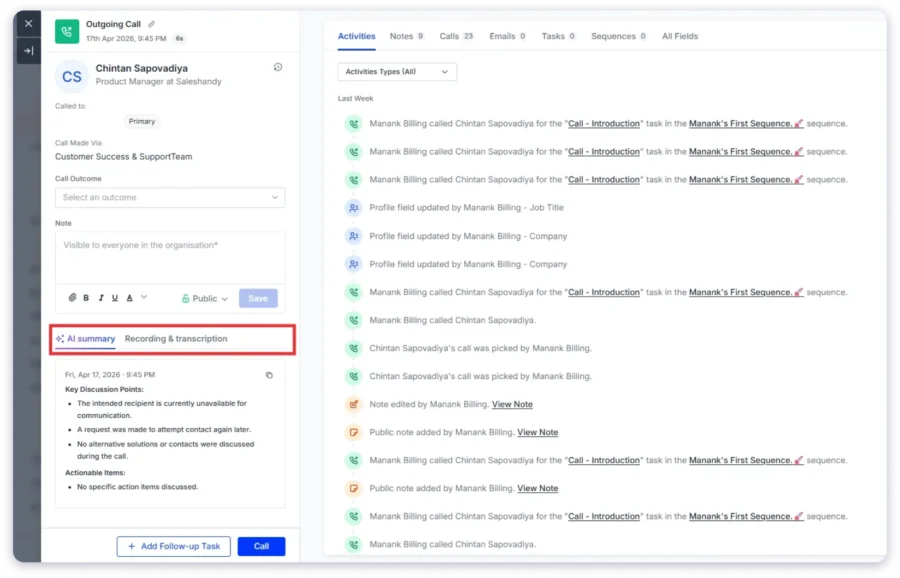
Recording
Call recording is enabled by default on every number you purchase. When recording is on, a notification plays at the start of the call: ‘This call is being recorded.’ You can toggle recording on or off per number in settings, or manually toggle it during an active call from the call window. Recordings are stored indefinitely with no storage cap.
Transcription
Every recorded call is automatically transcribed via AI after the call ends. The full transcript appears in three places. You can download the transcript as well:
- Call Log Detail Page
- Task Detail Page (if the call was initiated from a sequence task),
- Prospect’s profile in the CRM.
AI Summary
Alongside the transcript, Saleshandy automatically generates an AI-powered call summary for every recorded call. The summary is structured into two sections:
- Key Discussion Points: A concise overview of what was discussed, grouped by topic, with each point kept under 20 words for fast reading.
- Actionable Items: A list of follow-up actions, commitments, or next steps mentioned during the call, with the responsible party noted where mentioned.
If no action items were discussed, the summary states ‘No specific action items discussed’, so you always know the call was processed, even if nothing needs follow-up.
Your team manager can review call quality, your SDR can prepare for follow-up, and your CRM has a searchable record of every conversation, all without anyone manually writing notes.
Voicemail Drop: Leave Perfect Messages Without Staying on Hold
The Saleshandy Dialer has a full voicemail system with two sides: receiving voicemails from prospects, and dropping pre-recorded voicemails when prospects do not answer your calls.
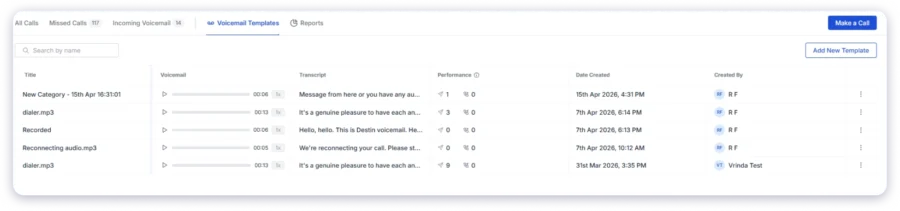
Receiving Voicemails
When a prospect calls your number and you do not answer, they hear your voicemail greeting and can leave a message. Incoming voicemails appear in the Dialer dashboard under a dedicated ‘Incoming Voicemails’ tab, with playback, adjustable speed, and full transcription visible inline. You can also see a red badge on the Dialer icon in the sidebar when new voicemails arrive, so nothing gets missed.
Voicemail Drop (Outbound)
When you call a prospect and they do not answer, the Voicemail Drop button in your active call window becomes active once the prospect’s voicemail greeting is detected. Instead of waiting and recording a live message every time, you can:
- Click Voicemail Drop in the active call window
- Select from your pre-recorded voicemail templates
- The recording plays automatically; the call disconnects after it completes
- You land on the Call Completion Modal to log the outcome and create follow-up
The entire voicemail drop takes under five seconds. You never have to wait through a full ring cycle for every unanswered call.
You can create and manage voicemail templates from the Dialer module. Each template has a performance tracker showing how many times it was dropped and how many callbacks it generated, so you can identify which voicemail messages actually drive responses.
Templates can be recorded live in-app (up to 60 seconds) or uploaded as .mp3 or .wav files. You can set one as your default so it auto-selects when you hit voicemail drop.
Local Presence and Number Rotation: Call Like a Local, Scale Like a Team
Two features that work together to maximize call answer rates and protect your numbers from spam flagging as you scale.
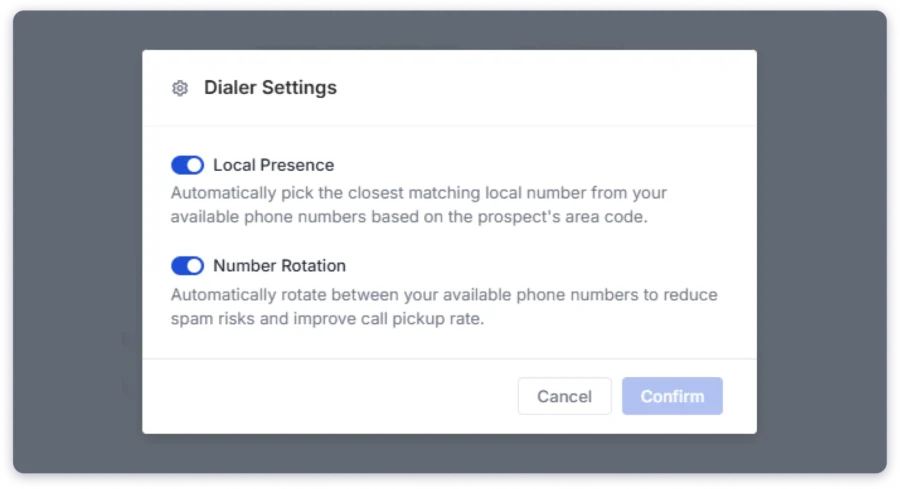
Local Presence
When you call a prospect from a number that matches their local area code, answer rates improve meaningfully. People are far more likely to pick up a call that looks local than one from an unfamiliar area code.
With Local Presence enabled in Saleshandy, the Dialer automatically selects the best matching outbound number for each call based on the prospect’s location. The matching logic works in priority order:
- Exact area code match: If you own a number with the same area code as the prospect, it is used
- State match: If no area code match, a number from the same state is selected
- Country match: If no state match, any number from the same country is used
- Fallback: If no geographic match exists, your primary outbound number is used
This selection happens automatically. You do not need to manually choose a number for each call.
Number Rotation
When you have multiple numbers in the same region, calling from a single number repeatedly at high volume can eventually cause that number to be flagged as spam. Number Rotation distributes your outgoing calls across multiple numbers in round-robin order, so call volume is spread evenly, no single number gets overexposed, and your calling operation stays clean as it scales.
Local Presence and Number Rotation can be used independently or together. When both are on, the system first finds the best geographic match, then rotates among matched numbers if multiple exist at that level.
Call From Sequence Tasks: No Context Switching
If you run outbound sequences in Saleshandy, your call tasks are already part of those sequences. The Dialer integrates directly into the Task Module so you can execute call tasks without ever leaving your queue.
When you click on a call task in the Task Module, a Task Detail Sidebar opens with two folds:
- Left fold: Task details (title, due date, priority), prospect profile (name, company, role, social links, phone and email), task instructions if any were added, call outcome dropdown, and notes
- Right fold: The prospect’s full activity timeline, showing every email sent, reply received, LinkedIn touchpoint, and previous call, all visible without opening another screen
When the call ends, the Call Completion Modal appears directly in the task flow, you log the outcome, review the AI summary, add notes, and mark the task as complete or snooze for later. Everything stays within the same sidebar. No switching, no copy-pasting, no re-opening a different screen to find the prospect.
For completed tasks, if the call was recorded, the recording, transcription, and AI summary are also accessible from the Task Detail Page, so managers can review calls without asking SDRs to send recordings separately.
Dialer Dashboard and Call Logs: One Place for All Your Call Activity
The Dialer module in your sidebar is a centralized hub for all call activity. It opens by default to the ‘All Calls’ tab and has three tabs total:
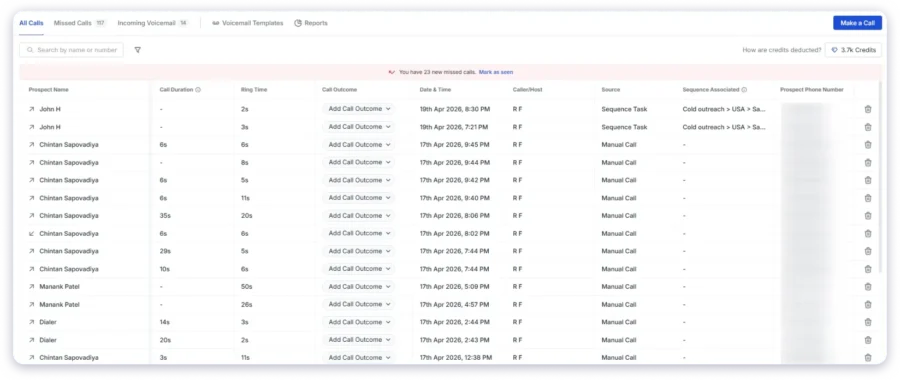
All Calls
A unified log of every outgoing call, incoming call, missed call, and voicemail drop, from all team members, all sequences, and all manually dialed numbers. Each row in the log shows the prospect name, call type (outgoing, incoming, missed, voicemail), call duration, ring time, call outcome, date and time, which team member made the call, which sequence it came from (or ‘Manual Call’ if dialed directly), and the phone number used.
Hovering over any row shows quick action buttons: Callback (opens the dialer pre-filled with that number) and Voicemail (opens an inline player if a voicemail is available).
Missed Calls
Displays all missed inbound calls. Unread missed calls show a red dot indicator in the log and trigger a red badge on the Dialer icon in the sidebar. An inline banner inside the Dialer shows the count and gives you a ‘Mark as Seen’ button to clear the notification once you have reviewed them.
Incoming Voicemails
Displays all voicemails received from prospects. Each entry shows the caller’s name, an inline audio player with playback speed control, a transcript preview (expandable or copyable), the date and time, and the caller’s number. New voicemails show a red dot and trigger the same sidebar badge system as missed calls.
Call Log Detail Page
Clicking any call row in the log opens a detailed view that shows everything about that call: the prospect profile, call metadata (direction, which numbers were used, duration), call outcome (selectable from a dropdown for outgoing calls), notes (editable), the full recording with transcription, the AI summary, and a sticky ‘Add Follow-up Task’ button at the bottom of the page.
From the Call Log Detail Page, you can also mark a prospect as ‘Do Not Contact’, which removes them from all future calling tasks and blocks them from being added to call steps, while allowing email outreach to continue.
Reports and Analytics: Team and Individual Call Performance
The Dialer includes a dedicated reporting module accessible from within the Dialer dashboard. It covers both outgoing and incoming call performance, viewable at team level and individual level.
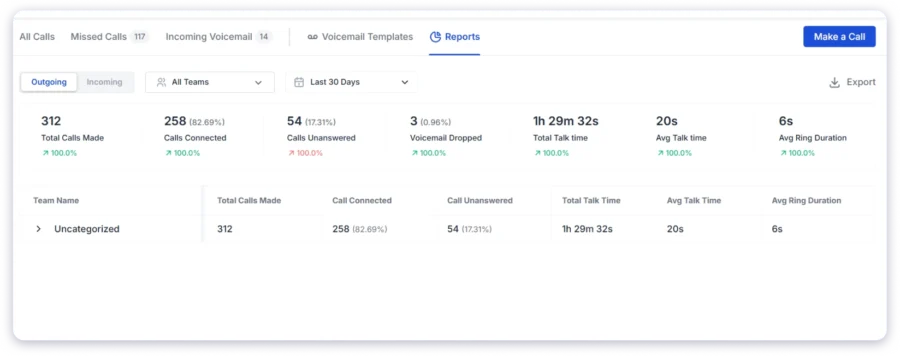
Outgoing Call Metrics
| Metric | What It Shows |
|---|---|
| Total Calls Made | All outgoing calls in the selected period |
| Calls Connected | Connected calls + % of total |
| Calls Unanswered | Calls not picked up + % of total |
| Voicemail Reached | Calls that reached prospect voicemail + % of total |
| Talk Time | Total duration of all connected calls |
| Average Talk Time | Talk Time ÷ Calls Made |
| Average Ring Duration | Average time between dial and pickup (including unanswered calls) |
Incoming Call Metrics
| Metric | What It Shows |
|---|---|
| Calls Received | All inbound calls (direct + forwarded) |
| Calls Picked | Answered calls + % of total |
| Calls Unanswered | Missed calls + % of total |
| Talk Time | Total duration of all answered incoming calls |
| Average Talk Time | Talk Time ÷ Calls Received |
The report table below the metrics shows performance by team, with accordion-style expansion to individual team members. Admins see all teams. Team managers see their own teams. Individual members see only their own data.
Each metric column shows a percentage change compared to the previous period, so if you select ‘Last Week’, you see this week’s stats next to last week’s for direct comparison.
Report Export
You can export call data in CSV format via email. Two export types are available:
- Detailed Report: Exports individual call-log level data for all call types (outgoing, incoming, missed) based on your selected team member and date range
- Table Breakdown: Exports the aggregated team/member summary table based on your current filters
Export links are sent to your registered email and expire after 7 days.
Do Not Call Management (Coming Soon)
Compliance matters in any calling operation. The Saleshandy Dialer includes a built-in Do Not Call (DNC) module under Settings, a centralized list of phone numbers that should never be called.
Any number added to a DNC list is blocked across all calling activities. Prospects on the DNC list cannot be added to call tasks or any other task type, only email outreach remains permitted for them.
You can create multiple DNC lists, either global (applies to all clients and outreach) or specific to a particular client. This is particularly useful for agencies managing calling operations across multiple clients, where compliance requirements differ.
Numbers can be added to a DNC list manually (one at a time with a country code selector) or via CSV import. You can also export any DNC list as a CSV for record-keeping or compliance reporting.
When a user marks a prospect as ‘Do Not Contact’ from within a call log, the system prompts for the correct country code (if not already on the number) before adding them to the DNC list, ensuring the number is blocked correctly.
There are also 11 predefined system call outcomes built into the platform, including a ‘Do Not Call’ outcome that automatically triggers the same DNC behavior when selected at the end of a call.
All Call Activity Lives in Your CRM
Every call made or received through the Saleshandy Dialer is automatically logged to the CRM. This means your prospect’s profile page always shows the complete picture, every email sent, every reply received, every LinkedIn touchpoint, and every call, in a single, chronological activity timeline.
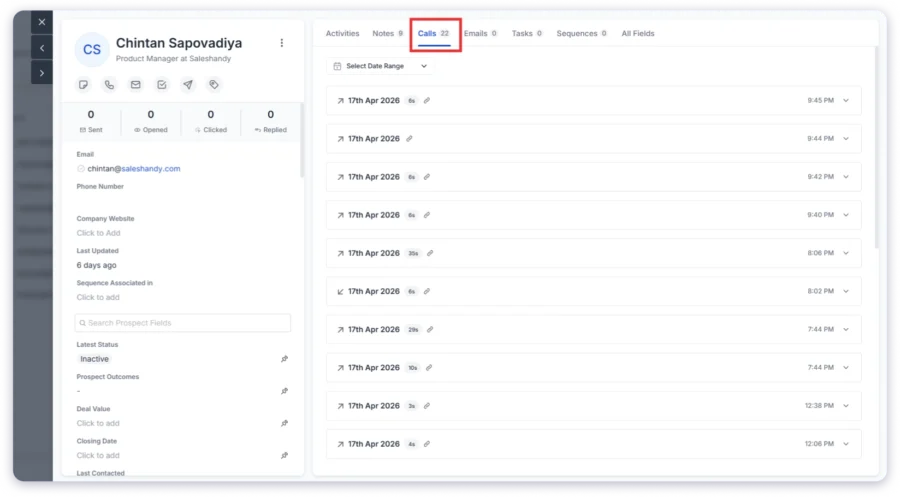
Inside a prospect’s detail page, there is now a dedicated ‘Call’ tab between Notes and Emails. This tab shows all call logs for that specific prospect, including call direction, duration, outcome, recording, transcript, and AI summary. You can also initiate a new call directly from this tab.
This is the difference between multichannel outreach and a multichannel record. When a prospect replies to an email and your SDR follows up with a call two days later, the SDR can see the full email thread AND the prior call summary, all in one place before picking up the phone.
The Complete Saleshandy Outreach Stack
With the Dialer live, Saleshandy now covers every major B2B outreach channel in a single platform. Here is what the full stack looks like today:
| Channel | What You Can Do | Where It Lives in Saleshandy | Status |
|---|---|---|---|
| Multi-step sequences, AI Sequence Copilot, sender rotation, AI personalization, deliverability tools | Sequences, Unified Inbox, AI Prospect Enrichment | Live | |
| Cold Calling | Outbound + inbound calls, recording, AI transcription, voicemail drop, local presence, reporting | Dialer Module, Task Module, CRM | Live |
| Connection requests, messages, InMails as sequence steps (via integrations) | Sequences (multichannel steps) | Live | |
| WhatsApp touchpoints as sequence steps | Sequences (multichannel steps) | Live |
All four channels are trackable in one CRM. Every touchpoint across every channel is visible in a prospect’s activity timeline. Every outcome, email reply, call result, LinkedIn response, contributes to a unified view of where each prospect stands in your pipeline.
Saleshandy Dialer Pricing
Check out Saleshandy Dialer pricing here.
How to Get Started With the Saleshandy Dialer
- Purchase a Dialer plan from your Saleshandy account under Billing & Subscription, select Starter or Pro based on your team’s call volume
- A free US phone number is automatically assigned to your account immediately after purchase
- Go to Phone Numbers in Settings to label your number, configure call forwarding and voicemail settings, and enable recording
- Purchase additional numbers if needed, search by country and area code from the Phone Numbers page
- Enable Local Presence and Number Rotation from Settings if you are calling across multiple regions or want to distribute call volume
- Run your first call, open the Dialer module, click ‘Make a Call’, and dial a number or search for a prospect from your list
- For sequence-based calling, your call tasks will already appear in the Task Module, click any call task to open the Task Detail Sidebar and call from there
The first phone number is included free with any Dialer plan. You can start calling within minutes of purchasing.
Get Dialer Access Today
Cold calling is now a native part of your Saleshandy workflow.
Every call recorded. Every conversation transcribed. Every follow-up tracked. All in the same platform where your emails, LinkedIn steps, and prospect CRM live.
Your outreach stack is complete. Sign up for free and access Dialer today!
FAQs
Do I need to install anything to use the Saleshandy Dialer?
No. The Dialer runs entirely in your browser; no downloads, no plugins, no setup beyond purchasing the plan. A Chrome Extension is also in development and will be available soon for an additional access point.
Can I use the Dialer on my existing Saleshandy plan?
The Dialer is a separate add-on with its own pricing (Starter at $23/month annually, Pro at $55/month annually). It is purchased in addition to your existing Saleshandy email outreach plan. Both plans run independently with separate billing.
What countries are phone numbers available for?
Currently, phone numbers are available for the United States and Canada. You can purchase numbers from both countries in a single transaction. International calling capabilities may expand in the future.
Is the first phone number really free?
Yes. When you purchase any Dialer plan (Starter or Pro), one US phone number is automatically provisioned to your account at no cost for the duration of your billing cycle. You can use it to make and receive calls immediately.
What happens if I run out of credits mid-month?
Monthly credits are used first. Once exhausted, Saleshandy automatically pulls from any add-on credits you have purchased. Add-on credits never expire, so you never lose them at month-end. You can purchase add-on credits in bundles from 1,000 to 100,000 credits directly from your Dialer module.
Phone numbers are assigned to individual team members. If a prospect calls a shared number that has not been specifically assigned, the system routes the call using round-robin logic. During an active call, a number cannot simultaneously be used by another team member.
Are call recordings and transcriptions really unlimited?
Yes. Both Dialer Starter and Dialer Pro include unlimited recording storage and transcription with no cap. AI summaries are also generated automatically for every recorded call at no additional cost. There is no pay-per-minute or storage fee for recordings.
Can I use the Dialer without a sequence, just to make manual calls?
Absolutely. The ‘Make a Call’ button in the Dialer module lets you dial any number manually or search for an existing prospect from your list. Manual calls are logged to the Dialer dashboard and to the prospect’s CRM profile just like sequence-based calls.
How does call forwarding work?
Call forwarding is configurable per number and can be set to forward all calls unconditionally, or conditionally based on rules like: unanswered after X seconds (10-60 second range), when the line is busy, or during a specific time window. Calls can be forwarded to another team member inside Saleshandy or to any external phone number.
Does the Do Not Call list block email outreach too?
No. Adding a prospect to the Do Not Call list blocks them from call tasks and calling activities only. Email outreach sequences and email steps can still reach them. This is intentional, DNC compliance is channel-specific, and Saleshandy treats calling and email compliance separately.
What call outcomes are available?
The Dialer includes 11 predefined system outcomes: Interested, Callback Later, Left Voicemail, Follow-up, Not Interested, Wrong Number, No Answer, Not in Service, Gatekeeper, Do Not Call, and a neutral option. You can also create custom outcomes with positive, neutral, or negative sentiment tagging from Settings > Company Settings > Call Outcomes.
Is a mobile app available for the Dialer?
A Mobile Dialer App is listed as coming soon on the Dialer Pro plan. The current Dialer is browser-based and works on any device with a modern browser, but the dedicated mobile app is not yet released.