

 Dhruv Patel
 Contents
- 1 Gmail Sending Limits – TOC
- 2 Quick Summary of Gmail Sending Limits at a Glance
- 3 How Many Emails Can You Send At Once In Google Workspace And Gmail?
- 4 What Are Gmail Attachment and Message Size Limits?
- 5 What Are Gmail Receiving Limits?
- 6 What Are Google Bulk Sender Requirements in 2025-2026?
- 7 How to Increase Your Email Sending Limit Safely?
- 8 What Happens if You Go Over Gmail’s Sending Limits?
- 9 Why Does Gmail Have Sending Limits?
- 10 Send More Emails Without Restrictions The Right Way!
- 11 Gmail Email Sending Limit – FAQs
- 11.1 1. How many cold emails can you send safely in a day?
- 11.2 2. Can I send 10,000 emails per day?
- 11.3 3. What is the difference between a standard Gmail account and a Google Workspace Account
- 11.4 4. Does Gmail have a sending limit per hour?
- 11.5 5. How long does a Gmail sending suspension last?
- 11.6 6. Does CC and BCC count toward Gmail’s sending limit?
- 11.7 7. What are Gmail’s attachment size limits in 2026?
How many emails can you actually send from Gmail before you hit a wall?
If you rely on Gmail for sales, support, or marketing, this number matters more than you think.
Hit the limit at the wrong time, and your entire workflow stops without any warning or grace period.
I went through Google’s latest documentation (updated for 2026) and pulled together every sending limit you need to know.
This covers standard Gmail, Google Workspace, attachments, and receiving limits that most guides skip.
I’ll also show you how to safely send beyond these Gmail sending limits without getting flagged or suspended.
Let’s get into it.
Gmail Sending Limits – TOC
- Email Sending Limit in Gmail
- Quick Summary of Gmail Sending Limits at a Glance
- How Many Emails Can You Send At Once In Google Workspace And Gmail?
- What Are Gmail Attachment & Message Size Limits?
- What Are Gmail Receiving Limits?
- What Are Google Bulk Sender Requirements in 2025-2026?
- How to Increase Your Email Sending Limit Safely?
- What Happens if You Go Over Gmail’s Sending Limits?
- Why Does Gmail Have Sending Limits?
- Send More Emails Without Restrictions The Right Way!
- Gmail Email Sending Limit – FAQs
Quick Summary of Gmail Sending Limits at a Glance
Before I get into the details, here’s a quick overview of every Gmail limit that matters in 2026:
| Limit Type | Standard Gmail | Google Workspace (Paid) | Workspace Trial |
|---|---|---|---|
| Emails per day | 500 | 2,000 | 500 |
| Total recipients per day | 500 | 10,000 | 500 |
| External recipients per day | 500 | 3,000 | 500 |
| Unique recipients per day | – | 3,000(2,000 external) | 500external |
| Recipients per email | 500 | 2,000 | 500 |
| Mail merge per day | – | 1,500 | – |
| Attachment size (send) | 25 MB | 25 MB(50 MB for Enterprise Plus) | 25 MB |
| Attachment size (receive) | 50 MB | 50 MB(70 MB for Enterprise Plus) | 50 MB |
Important: All daily limits run on a rolling 24-hour window, not a calendar day. So if you sent 2,000 emails at 3 PM today, your limit resets at 3 PM tomorrow, not at midnight.
Now let me break each of these down properly.
How Many Emails Can You Send At Once In Google Workspace And Gmail?
I did all the heavy lifting—going through Google’s documentation, testing real-world scenarios, and gathering the latest updates—so you don’t have to.
Here’s a heads-up on what you’ll get to know in this section:
I’ll answer commonly asked questions, so read on!
1. Sending Limits for Google Workspace Accounts
Quick Answer:
- Maximum messages per day: 2,000
- Total recipients you can email per day: 10,000
- Total external recipients per day: 3,000
- Total unique recipients per day: 3,000
Detailed Answer:
With a paid Google Workspace account, you can send up to 2,000 emails in a rolling 24-hour period.
But Google also lets you reach up to 10,000 recipients per day. That number is higher than the message limit because of how CC and BCC work.
Here’s how to think about it:
If you send 5 emails to 10 people each, that’s 50 recipients used out of your 10,000 daily quota.
If you send 2,000 unique emails to 2,000 people, you’ve maxed out your message limit, even if you still have 8,000 recipients left.
But if you add 5 recipients via CC/BCC to each of those 2,000 emails, you can cover all 10,000 recipients within the message limit.
So if you need to mass-send, you’ll need to work smartly with To, CC, and BCC.
One thing most guides miss: replies, forwards, and even vacation auto-responders all count toward your daily sending limit. So if you have a vacation responder active during a heavy sending day, that’s quietly eating into your quota.
Per-Message Limits by Sending Method
The number of recipients you can include in a single message depends on how you’re sending:
| Sending Method | Recipients per Email |
|---|---|
| Gmail web / mobile | 2,000 |
| SMTP / POP / IMAP | 100 |
| Gmail API | 500 |
| GWSMO (Google Workspace Migration) | 100 |
This matters if you’re using any third-party client or migration tool. You’ll hit a much lower per-message ceiling than the web interface.
Other Important Google Workspace Limits:
| Category | Limit |
|---|---|
| Auto-forwarded emails | 10,000 per day |
| Unique external recipients | 2,000 per day |
| Mail merge (multi-send) | 1,500 per day |
| Free trial accounts | 500 per day |
| Trial to paid conversion | After $100 cumulative spend or 75 days(whichever comes first) |
Next, let’s take a look at your new Gmail account for individuals.
2. Sending Limits for Standard Gmail Accounts
Learn Quickly:
- Google Email Limits: 500/day
- Gmail BCC Limits: 500/day
- Google Recipient Limits: 500/day
Detailed Answer:
With a free Gmail account, you can send to a maximum of 500 recipients per day. That means:
- One email to 500 recipients, or
- Five emails to 100 recipients each, or
- Any combination that stays under 500 total recipients
Just like Workspace, this runs on a rolling 24-hour window, not midnight to midnight.
And the same rule applies here: replies, forwards, and vacation auto-responders all count toward that 500 limit. If you’ve got an active auto-reply and you’re also sending outreach, those numbers add up faster than you’d expect.
If you hit the limit, Gmail will lock you out of sending for anywhere between 1 and 24 hours. You can still receive emails during that time, but you won’t be able to send anything until the lockout ends.
I’ll answer this in the next section!
What Are Gmail Attachment and Message Size Limits?
This is a section most Gmail limit guides don’t cover, but it matters. Especially after Google’s February 2026 update for Enterprise Plus accounts.
Here’s how attachment limits break down across account types:
| Account Type | Max Attachment Size (Send) | Max Attachment Size (Receive) | Max Attachments per Email |
|---|---|---|---|
| Standard Gmail | 25 MB | 50 MB | 500 |
| Google Workspace (most plans) | 25 MB | 50 MB | 500 |
| Enterprise Plus(Feb 2026 update) | 50 MB | 70 MB | 500 |
The catch most people miss: Gmail uses MIME/Base64 encoding for attachments, which adds roughly 33-37% overhead to the file size. So a 25 MB limit doesn’t actually mean you can attach a 25 MB file.
In practice, you can reliably attach about 18 MB on standard accounts and around 35 MB on Enterprise Plus.
If your file is larger than the limit, Gmail automatically uploads it to Google Drive and includes a download link in the email instead.
The February 2026 update: Google rolled out higher attachment limits specifically for Enterprise Plus accounts. 50 MB for sending and 70 MB for receiving. Admins can configure this through the Admin Console, and it’s opt-in, not automatic.
What Are Gmail Receiving Limits?
Sending limits get all the attention, but Gmail also has receiving limits. These can affect you if you’re running inbound campaigns or using catch-all addresses.
| Limit Type | Limit |
|---|---|
| Emails received per minute | 60 |
| Emails received per hour | 3,600 |
| Emails received per day | 86,400 |
| Max email size (most accounts) | 50 MB |
| Max email size (Enterprise Plus) | 70 MB |
| Max attachments per email | 500 |
If your account exceeds these limits, incoming emails will bounce back to the sender. Gmail won’t queue them. They just get rejected until the limit resets.
Practical tip: If you’re expecting high-volume inbound traffic (like responses from a large campaign), Google recommends using Google Groups to distribute incoming messages across multiple inboxes. Also, avoid catch-all email addresses on high-traffic domains. They’re the fastest way to hit receiving limits.
What Are Google Bulk Sender Requirements in 2025-2026?
If you send more than 5,000 emails per day to Gmail addresses, Google considers you a “bulk sender.” And the rules are stricter than basic sending limits.
Google started enforcing these requirements in stages through 2024, and as of November 2025, non-compliant senders face temporary or permanent rejections. New domains get even less grace period.
Requirements for all senders (any volume):
- Set up either SPF or DKIM email authentication
- Have valid forward and reverse DNS (PTR) records
- Use a TLS connection for transmitting email
- Keep spam complaint rates below 0.3% (measured in Google Postmaster Tools)
- Follow RFC 5322 formatting standards
Additional requirements if you send 5,000+ per day:
- Set up both SPF and DKIM (not just one)
- Publish a DMARC policy (minimum p=none)
- Include a one-click unsubscribe header
- The “From” header domain must align with either SPF or DKIM domain
What happens if you don’t comply? Google started with warning rejections, then moved to temporary failures for a percentage of non-compliant traffic. As of late 2025, persistent non-compliance can result in permanent rejection of your emails to Gmail addresses.
This is exactly why proper authentication setup matters before you scale your outreach. Which brings me to the next section.
| Requirement | All Senders (Any Volume) | Bulk Senders (5,000+/day) |
|---|---|---|
| SPF authentication | ✓ SPF or DKIM required | ✓ SPF required |
| DKIM authentication | ✓ SPF or DKIM required | ✓ DKIM required |
| DMARC policy | – Not required | ✓ Required (minimum p=none) |
| PTR records | ✓ Valid forward & reverse DNS | ✓ Valid forward & reverse DNS |
| TLS connection | ✓ Required | ✓ Required |
| Spam rate threshold | ✓ Below 0.3% | ✓ Below 0.3% |
| RFC 5322 compliance | ✓ Required | ✓ Required |
| One-click unsubscribe | – Not required | ✓ Required |
| Domain alignment | – Not required | ✓ From header must align with SPF or DKIM |
How to Increase Your Email Sending Limit Safely?
Working within Gmail’s limits is fine for everyday business email. But if you’re running sales outreach or marketing campaigns, 500 or even 2,000 emails a day won’t cut it.
Here are three ways to go beyond those limits without getting flagged or suspended.
Let’s take a look at them in detail:
1. Using Multiple Accounts
The most obvious approach. Just add more accounts.
Five Google Workspace accounts give you 10,000 emails per day. Ten accounts give you 20,000. The math is simple.
The problem is managing it. Manually switching between accounts, tracking who you’ve emailed from which account, and keeping each account’s reputation healthy is a full-time job. It works in theory, but it breaks down fast at scale.
2. Using Google Groups
If you’re emailing people within your organization or a defined group, Google Groups can be a smart workaround.
Here’s how it works: create a Group, add your recipients, and send one email to the Group address. Gmail counts it as sending to one recipient, even if the Group has hundreds of members.
The limitations are real though:
- Only works with internal or subscribed Group members
- You can’t dynamically add external contacts
- Not practical for cold outreach or sales emails
It’s a good fit for internal announcements and team updates. Not so much for prospecting.
But the next method is perfect if you want a no-hassle experience to easily scale your outreach emails.
Let’s take a look.
3. Using Third-Party Tools
This is what I’d actually recommend if you’re doing any kind of outbound at scale.
With a tool like Saleshandy, you can connect unlimited email accounts and rotate sending across all of them automatically.
That means you can comfortably send 10,000+ emails per day while keeping each individual account well within Gmail’s limits.
In addition, you can easily personalize your emails at scale to make each one unique and tailored to your recipients.
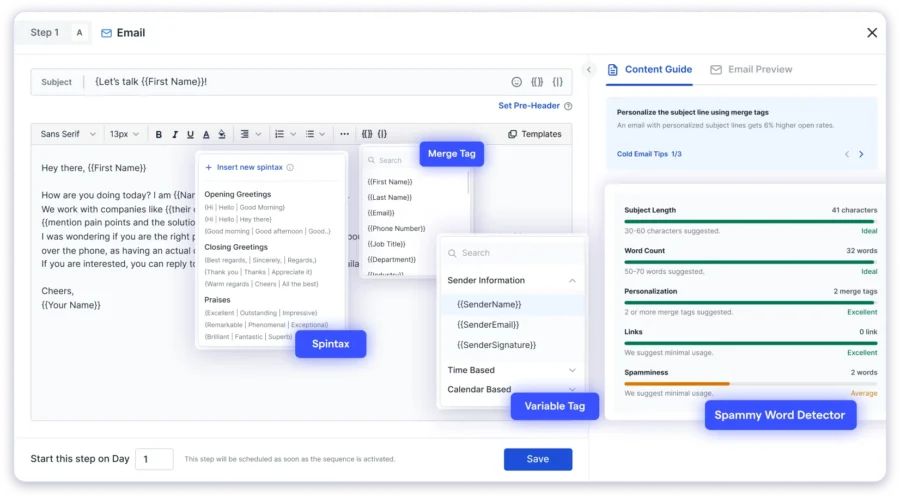
There is so much more, but I’ll end by saying: If you’re into cold outreach, you should definitely try Saleshandy.
But the real advantage isn’t just volume. It’s what comes with it:
- Sender rotation distributes your emails across accounts, so no single account gets overloaded
- Email warm-up (through TrulyInbox) gradually builds each account’s reputation before you scale
- Inbox Placement Test checks your domain reputation, SPF/DKIM/DMARC setup, and content for spam triggers before you hit send
- 800M+ B2B contact database with real-time verified emails and phone numbers, so you’re not wasting sends on bad data
- Built-in CRM with a Kanban pipeline, activity timeline, and 1:1 email so you can track replies, plan follow-ups, and manage deals without switching tools
Also Read: How to send email campaigns from Saleshandy – A step-by-step guide.
What Happens if You Go Over Gmail’s Sending Limits?
If you exceed Gmail’s daily sending limit, here’s what actually happens, step by step.
1. Temporary Account Suspension
Gmail will temporarily block you from sending emails. The suspension lasts anywhere from 1 to 24 hours, depending on how far over the limit you went.
During this time, you can still receive emails and use other Google services. You just can’t send.
For Workspace accounts, admins can check the status in the Admin Console and may be able to restore sending access through Google Support.
If you keep hitting the limit repeatedly, Gmail may impose longer suspensions. In the worst case, it can permanently restrict your account’s ability to send.
2. Exact Error Messages You’ll See
Gmail gives you specific error messages when you hit a limit. Knowing these helps you diagnose the problem quickly:
“You have reached a limit for sending emails.” This appears when you’ve exceeded either the 500 recipient limit (standard Gmail) or the 2,000 email limit (Workspace). Sending access typically restores within 1 to 24 hours.
“You reached a Gmail sending limit.” Similar to the above. Gmail uses slightly different wording depending on which specific limit you triggered.
“You exceeded the maximum recipients.” This one shows up when you’ve tried to add too many To/CC/BCC recipients in a single email or across the day.
“The user you are trying to contact is receiving mail at a rate that prevents additional messages from being delivered.” This isn’t about your sending limit. It means the recipient’s inbox is hitting Gmail’s receiving limits. You’ll need to reach them another way.
Permanent Restrictions for Spam Senders
This is the one nobody wants to deal with. If Gmail’s systems flag your account for sending spam, based on complaint rates, content triggers, or authentication failures, Google can permanently restrict your ability to send. No cool-down period, no reset.
This is why staying under the 0.3% spam complaint threshold and having proper SPF/DKIM/DMARC setup isn’t optional.
If your email account has already been suspended, here is how to restore it.
Why Does Gmail Have Sending Limits?
Gmail (Google) itself has stated why it has sending limits.
Here’s my breakdown of the reasons:
- Prevent spam – The primary purpose of Gmail’s send limits is to fight spam. Google explicitly notes that it restricts the number of emails you can send “to help prevent spam”.
- Security – The first purpose of Gmail’s sending limit is to detect and prevent potential abuse and protect its users from malicious activities such as account hijacking and phishing attacks. In Google’s words, these limits help “keep accounts safe”, stopping suspicious mass emailing if an account is compromised.
- Server performance and stability – Gmail also enforces sending limits to maintain the health and stability of its email servers. High-volume emailing by a single user could strain resources, so Google sets thresholds to “keep systems healthy”.
- Comply with regulations – Gmail’s sending limits help Google adhere to laws, regulations, and industry standards related to email. Google must follow various anti-spam laws and privacy rules (for example, the CAN-SPAM Act and data protection regulations) in its email practices.
Send More Emails Without Restrictions The Right Way!
Yes, Gmail has its own email sending limits, and yes, you can send emails over that limit if you follow the right steps and process.
What’s the right way to do it?
Use a third-party platform!
If you’re sending cold emails, Saleshandy is your best bet for high deliverability and compliance with Gmail’s limits.
For marketing emails and newsletters, go for Mailchimp or Brevo to send at scale without worrying about Gmail blocks.
Use the right tool for the job and scale your effort!
Gmail Email Sending Limit – FAQs
1. How many cold emails can you send safely in a day?
The industry-recommended safe limit is 50 emails per day per email account. This keeps your sender reputation healthy and minimizes the risk of spam flags. If you need higher volume, use multiple accounts with a sender rotation tool like Saleshandy rather than pushing a single account past safe thresholds.
2. Can I send 10,000 emails per day?
It’s very much possible, but only with a dedicated cold email software. You can read more on my blog: How to Send Bulk Emails with Gmail (Guide for Sending 10,000+ Emails at Once).
3. What is the difference between a standard Gmail account and a Google Workspace Account
A standard Gmail account is free to use, has a limit of 500 emails, and is ideal for personal use. Meanwhile, you’ll have to pay to set up a Google Workspace account, and it has a limit of 2,000 messages per day. It is ideal if you’re looking for business communications.
4. Does Gmail have a sending limit per hour?
Gmail doesn’t publish an official hourly sending limit. However, there is a receiving limit of 3,600 emails per hour, and sending too many emails too quickly within a short window can trigger Gmail’s spam filters. The safest approach is to spread your sending volume throughout the day rather than sending everything at once.
5. How long does a Gmail sending suspension last?
Typically between 1 and 24 hours. During the suspension, you can still receive emails and use other Google services. You just can’t send. If you repeatedly exceed limits, Gmail may impose longer suspensions or permanent restrictions.
6. Does CC and BCC count toward Gmail’s sending limit?
Yes. Every recipient in the To, CC, and BCC fields counts individually toward your daily recipient limit. So if you send one email with 10 people in CC and 5 in BCC, that’s 16 recipients counted (including the To address). This is how you can reach Gmail’s 10,000 recipient Workspace limit faster than expected.
7. What are Gmail’s attachment size limits in 2026?
For most Gmail and Workspace accounts, the maximum attachment size is 25 MB for sending and 50 MB for receiving. As of February 2026, Google increased this to 50 MB (send) and 70 MB (receive) for Enterprise Plus accounts, configurable by admins. Keep in mind that MIME encoding adds about 33-37% overhead, so your real-world usable attachment size is lower than the stated limit.